
This is an article to document how to include a subform and rows while you are creating a record containing the subform.
Why?
The use case here is for a Quote Builder in Zoho Creator: Create a quote record and include a subform containing the line items. You may have tried code where you add a record first and then add the subform afterwards (insert into <form>[...]) but it can be done all in one go.
How?
Here's a use case example which you will need to adapt to your own but It should do enough (spacing has been added for demo purposes and to make it clearer).
In the below example, my form is called "Quotes" and my subform is called "Line_Items":
copyraw
// initialize variables
// ... this is a demo so ... do your own ...
//
// get source data
r_QuoteDetails = zoho.crm.getRecordById("Quotes", 123456789012345678);
//
// transform variables for main record
v_QuoteName = ifnull(r_QuoteDetails.get("Name"),"Test Quote");
if(!isNull(r_QuoteDetails.get("Contact_Name")))
{
    r_ContactDetails    = zoho.crm.getRecordById("Contacts", r_QuoteDetails.get("Contact_Name").get("id"));
    v_ContactFname      = r_ContactDetails.get("First_Name");
    v_ContactSname      = r_ContactDetails.get("Last_Name");
    v_AddressLine1      = r_ContactDetails.get("Street");
    v_AddressCity       = r_ContactDetails.get("City");
    v_AddressState      = r_ContactDetails.get("State");
    v_AddressZip        = r_ContactDetails.get("Zip");
    v_AddressCountry    = r_ContactDetails.get("Country");
}
//
// get line items from source and populate this subform
l_QuotedItems = r_QuoteDetails.get("Product_Details");
c_LineItems = Collection();
for each  m_LineItem in l_QuotedItems
{
    r_Row               = Quotes.Line_Items();
    r_Row.Product       = m_LineItem.get("Product");
    r_Row.Quantity      = m_LineItem.get("Quantity");
    r_Row.List_Price    = m_LineItem.get("List_Price");
    r_Row.Tax           = m_LineItem.get("Tax");
    r_Row.Discount      = m_LineItem.get("Discount");
    r_Row.Total         = m_LineItem.get("Line_Item_Total");
    c_LineItems.insert(r_Row);
}
//
// create creator record
r_Create = insert into Quotes
[
    Added_User=zoho.loginuser
    Quote_Name=v_QuoteName
    Contact_Name.first_name=v_ContactFname
    Contact_Name.last_name=v_ContactSname
    Billing_Address.address_line_1=v_AddressLine1
    Billing_Address.district_city=v_AddressCity
    Billing_Address.state_province=v_AddressCity
    Billing_Address.postal_Code=v_AddressZip
    Billing_Address.country=v_AddressCountry
    Line_Items=c_LineItems
];
- // initialize variables
- // ... this is a demo so ... do your own ...
- //
- // get source data
- r_QuoteDetails = zoho.crm.getRecordById("Quotes", 123456789012345678);
- //
- // transform variables for main record
- v_QuoteName = ifnull(r_QuoteDetails.get("Name"),"Test Quote");
- if(!isNull(r_QuoteDetails.get("Contact_Name")))
- {
- r_ContactDetails = zoho.crm.getRecordById("Contacts", r_QuoteDetails.get("Contact_Name").get("id"));
- v_ContactFname = r_ContactDetails.get("First_Name");
- v_ContactSname = r_ContactDetails.get("Last_Name");
- v_AddressLine1 = r_ContactDetails.get("Street");
- v_AddressCity = r_ContactDetails.get("City");
- v_AddressState = r_ContactDetails.get("State");
- v_AddressZip = r_ContactDetails.get("Zip");
- v_AddressCountry = r_ContactDetails.get("Country");
- }
- //
- // get line items from source and populate this subform
- l_QuotedItems = r_QuoteDetails.get("Product_Details");
- c_LineItems = Collection();
- for each m_LineItem in l_QuotedItems
- {
- r_Row = Quotes.Line_Items();
- r_Row.Product = m_LineItem.get("Product");
- r_Row.Quantity = m_LineItem.get("Quantity");
- r_Row.List_Price = m_LineItem.get("List_Price");
- r_Row.Tax = m_LineItem.get("Tax");
- r_Row.Discount = m_LineItem.get("Discount");
- r_Row.Total = m_LineItem.get("Line_Item_Total");
- c_LineItems.insert(r_Row);
- }
- //
- // create creator record
- r_Create = insert into Quotes
- [
- Added_User=zoho.loginuser
- Quote_Name=v_QuoteName
- Contact_Name.first_name=v_ContactFname
- Contact_Name.last_name=v_ContactSname
- Billing_Address.address_line_1=v_AddressLine1
- Billing_Address.district_city=v_AddressCity
- Billing_Address.state_province=v_AddressCity
- Billing_Address.postal_Code=v_AddressZip
- Billing_Address.country=v_AddressCountry
- Line_Items=c_LineItems
- ];
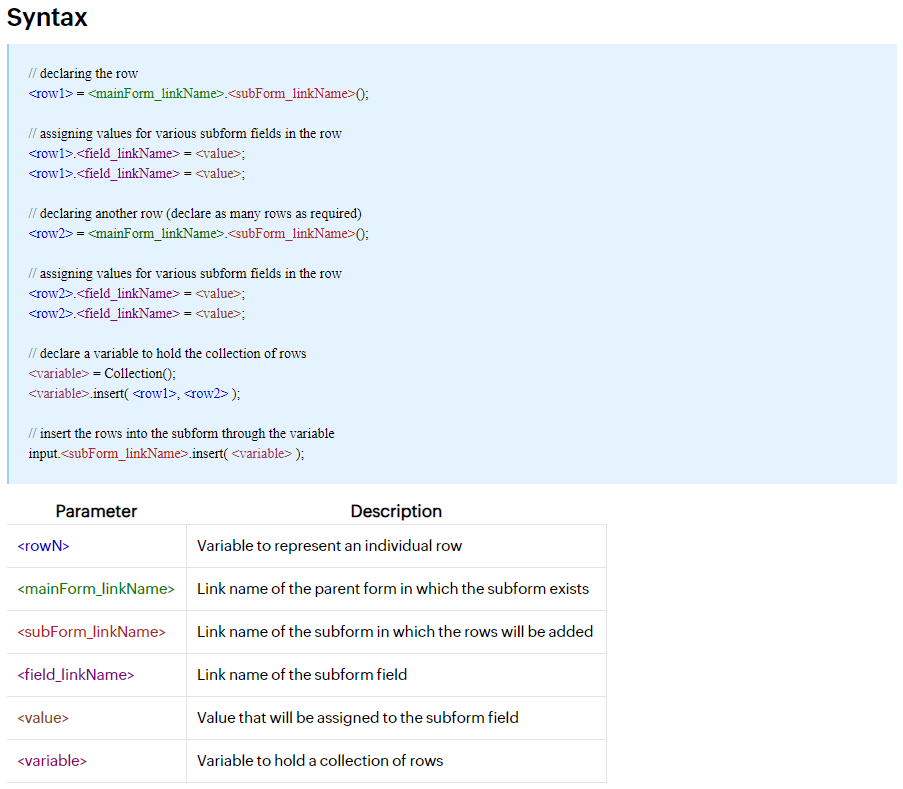
From the documentation
Additional
- Note that any bidirectional relation field that exists will be prepopulated using the method above.
- Clear subform of all its rows: input.<subForm_linkName>.clear();
- Changing the picklist/dropdown options in a subform row (applies overall rather than per row):
copyraw
clear <mainForm_linkName>.<subForm_linkName>.<subForm_field_linkName>;
<mainForm_linkName>.<subForm_linkName>.<subForm_field_linkName>:ui.add(<dropdown_option_1>);
- clear <mainForm_linkName>.<subForm_linkName>.<subForm_field_linkName>;
- <mainForm_linkName>.<subForm_linkName>.<subForm_field_linkName>:ui.add(<dropdown_option_1>);
Source(s):
Category: Zoho Creator :: Article: 287