So this is an article documenting how to create an on/off toggle switch that hides and displays between 2 div layers in a Zoho Creator Page (so not a form or report but a page).
Why?
This is written at a time when Javascript or interactive pages that change on the fly based on a mouse event in Zoho Creator automatically get removed on Save/Update of the page. The following uses the built-in functionality of Zoho Creator and could be seen as a 'Pure CSS' feature. I'm aiming to make a list of capabilities that can be done without loading another framework considering that Zoho Creator has their own version of Bootstrap and jQuery. This is the first example I have where you would want dynamic content in a Zoho Creator page without the use of JavaScript or 'Widgets JS'.
How?
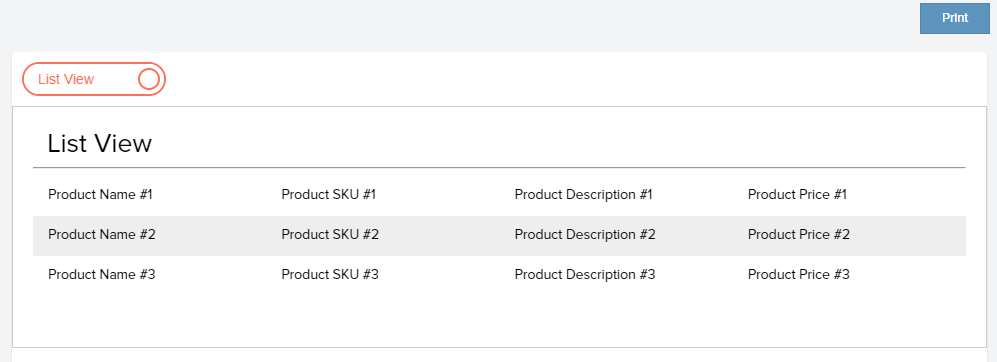
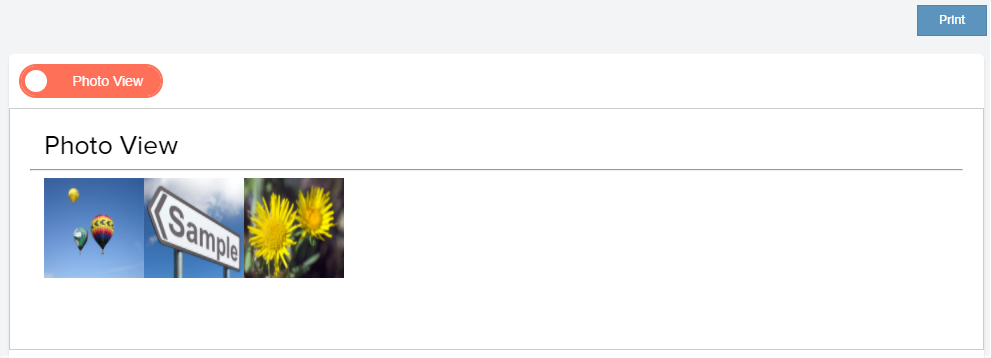
Here are some screenshots to preview what the code below will do, simply copy the code and paste into a Zoho Creator Page. Be sure to copy the code directly into a page and NOT to be in a function that is called from the Zoho Creator page. Functions are read by Zoho and certain CSS attributes (such as position and float) will be removed automatically. The code has to be pasted directly in the Page and then the CSS attributes will remain.
Preview
the Code
The code below can be changed to suit your own styling. It has been intended for use on large desktops so it's a little buggy on smaller cellular/mobile devices which you'll need to tweak to display in a way other than the previous preview images. You can change the shape, content and colors used for the on/off switch but try to keep the on/off css section to preserve functionality:
copyraw
<style>
	/* On Off Switch CSS */
    .onoffswitch {
        position: relative;
        width: 100%;
        -webkit-user-select:none;
        -moz-user-select:none;
        -ms-user-select: none;
    }
    .onoffswitch-checkbox {
        display: none;
    }
    .onoffswitch-label {
        display: block;
        overflow: hidden;
        cursor: pointer;
        border: 2px solid #ff7058;
        border-radius: 20px;
        width: 140px;
		margin: 10px;
    }
    .onoffswitch-inner {
        display: block;
        width: 200%;
        margin-left: -100%;
        transition: margin 0.3s ease-in 0s;
    }
    .onoffswitch-inner:before, .onoffswitch-inner:after {
        display: block;
        float: left;
        width: 50%;
        height: 30px;
        padding: 0;
        line-height: 30px;
        font-size: 14px;
        color: white;
        font-family: Trebuchet, Arial, sans-serif;
        font-weight: lighter;
        box-sizing: border-box;
    }
    .onoffswitch-inner:before {
        content: "List View";
        padding-left: 14px;
        background-color: white; color: #ff7058;
    }
    .onoffswitch-inner:after {
        content: "Photo View";
        padding-right: 18px;
        background-color: #ff7058; color: white;
        text-align: right;
    }
    .onoffswitch-switch {
        display: block;
		width: 18px;
		margin: 6px;
		height: 18px;
        background: #FFFFFF;
        position: absolute;
		top: 0;
		bottom: 0;
        left: 10px;
        border: 2px solid white;
		border-radius: 20px;
        transition: all 0.3s ease-in 0s;
    }
    .onoffswitch-checkbox:checked + .onoffswitch-label .onoffswitch-inner {
        margin-left: 0;
    }
    .onoffswitch-checkbox:checked + .onoffswitch-label .onoffswitch-switch {
        left: 120px;
        border: 2px solid #ff7058;
    }
    .onoffswitch-checkbox:checked ~ .main-content1{
        display:none;
    }
    .onoffswitch-checkbox:checked ~ .main-content2{
        display:block;
    }
	/* Div to hide/display CSS */
    div[class^="main-content"]{
        margin-top: 10px;
        border: 1px solid #CCC;
        height: 200px;
        padding:20px;
    }
    .main-content1{
        display:block;
    }
    .main-content2{
        display:none;
    }
	/* Custom CSS */
    .content-image img{
        width:100px;
        height:100px;
    }
    div.sub-content div.content-row{
		padding: 10px 0 0 0;
        height: 30px;
    }
    div.sub-content div.content-row:nth-child(even){
        background-color:#eee;
    }
	.headline-inner{
		font-size: 20pt;
    	margin-left: 14px;
	}
	.main-content1 .sub-content{
		margin-left: 14px;
	}
</style>
<div class="onoffswitch">
	<input type="checkbox" name="onoffswitch" class="onoffswitch-checkbox" id="myonoffswitch" checked>
	<label class="onoffswitch-label" for="myonoffswitch">
		<span class="onoffswitch-inner"></span>
		<span class="onoffswitch-switch"></span>
	</label>
	<div class="main-content1">
		<div style="display:inline-block;width:100%">
			<div class="headline-inner">Photo View</div>
			<hr class="divider-line">
			<div class="sub-content">
				<div class="content-image pull-left"><img src="https://upload.wikimedia.org/wikipedia/commons/e/ee/Sample_abc.jpg" /></div>
				<div class="content-image pull-left"><img src="https://www.picpedia.org/highway-signs/images/sample.jpg" /></div>
				<div class="content-image pull-left"><img src="https://upload.wikimedia.org/wikipedia/commons/b/bf/Flower-sample-MBS-10-2.jpg" /></div>
			</div>
		</div>
	</div>
	<div class="main-content2">
		<div style="display:inline-block;width:100%">
			<div class="headline-inner">List View</div>
			<hr class="divider-line">
			<div class="sub-content">
				<div class="content-row">
					<div class="content-column col-md-3">
						Product Name #1
					</div>
					<div class="content-column col-md-3">
						Product SKU #1
					</div>
					<div class="content-column col-md-3">
						Product Description #1
					</div>
					<div class="content-column col-md-3">
						Product Price #1
					</div>
				</div>
				<div class="content-row">
					<div class="content-column col-md-3">
						Product Name #2
					</div>
					<div class="content-column col-md-3">
						Product SKU #2
					</div>
					<div class="content-column col-md-3">
						Product Description #2
					</div>
					<div class="content-column col-md-3">
						Product Price #2
					</div>
				</div>
				<div class="content-row">
					<div class="content-column col-md-3">
						Product Name #3
					</div>
					<div class="content-column col-md-3">
						Product SKU #3
					</div>
					<div class="content-column col-md-3">
						Product Description #3
					</div>
					<div class="content-column col-md-3">
						Product Price #3
					</div>
				</div>
			</div>
		</div>
	</div>
</div>
- <style>
- /* On Off Switch CSS */
- .onoffswitch {
- position: relative;
- width: 100%;
- -webkit-user-select:none;
- -moz-user-select:none;
- -ms-user-select: none;
- }
- .onoffswitch-checkbox {
- display: none;
- }
- .onoffswitch-label {
- display: block;
- overflow: hidden;
- cursor: pointer;
- border: 2px solid #ff7058;
- border-radius: 20px;
- width: 140px;
- margin: 10px;
- }
- .onoffswitch-inner {
- display: block;
- width: 200%;
- margin-left: -100%;
- transition: margin 0.3s ease-in 0s;
- }
- .onoffswitch-inner:before, .onoffswitch-inner:after {
- display: block;
- float: left;
- width: 50%;
- height: 30px;
- padding: 0;
- line-height: 30px;
- font-size: 14px;
- color: white;
- font-family: Trebuchet, Arial, sans-serif;
- font-weight: lighter;
- box-sizing: border-box;
- }
- .onoffswitch-inner:before {
- content: "List View";
- padding-left: 14px;
- background-color: white; color: #ff7058;
- }
- .onoffswitch-inner:after {
- content: "Photo View";
- padding-right: 18px;
- background-color: #ff7058; color: white;
- text-align: right;
- }
- .onoffswitch-switch {
- display: block;
- width: 18px;
- margin: 6px;
- height: 18px;
- background: #FFFFFF;
- position: absolute;
- top: 0;
- bottom: 0;
- left: 10px;
- border: 2px solid white;
- border-radius: 20px;
- transition: all 0.3s ease-in 0s;
- }
- .onoffswitch-checkbox:checked + .onoffswitch-label .onoffswitch-inner {
- margin-left: 0;
- }
- .onoffswitch-checkbox:checked + .onoffswitch-label .onoffswitch-switch {
- left: 120px;
- border: 2px solid #ff7058;
- }
- .onoffswitch-checkbox:checked ~ .main-content1{
- display:none;
- }
- .onoffswitch-checkbox:checked ~ .main-content2{
- display:block;
- }
- /* Div to hide/display CSS */
- div[class^="main-content"]{
- margin-top: 10px;
- border: 1px solid #CCC;
- height: 200px;
- padding:20px;
- }
- .main-content1{
- display:block;
- }
- .main-content2{
- display:none;
- }
- /* Custom CSS */
- .content-image img{
- width:100px;
- height:100px;
- }
- div.sub-content div.content-row{
- padding: 10px 0 0 0;
- height: 30px;
- }
- div.sub-content div.content-row:nth-child(even){
- background-color:#eee;
- }
- .headline-inner{
- font-size: 20pt;
- margin-left: 14px;
- }
- .main-content1 .sub-content{
- margin-left: 14px;
- }
- </style>
- <div class="onoffswitch">
- <input type="checkbox" name="onoffswitch" class="onoffswitch-checkbox" id="myonoffswitch" checked>
- <label class="onoffswitch-label" for="myonoffswitch">
- <span class="onoffswitch-inner"></span>
- <span class="onoffswitch-switch"></span>
- </label>
- <div class="main-content1">
- <div style="display:inline-block;width:100%">
- <div class="headline-inner">Photo View</div>
- <hr class="divider-line">
- <div class="sub-content">
- <div class="content-image pull-left"><img src="https://upload.wikimedia.org/wikipedia/commons/e/ee/Sample_abc.jpg" /></div>
- <div class="content-image pull-left"><img src="https://www.picpedia.org/highway-signs/images/sample.jpg" /></div>
- <div class="content-image pull-left"><img src="https://upload.wikimedia.org/wikipedia/commons/b/bf/Flower-sample-MBS-10-2.jpg" /></div>
- </div>
- </div>
- </div>
- <div class="main-content2">
- <div style="display:inline-block;width:100%">
- <div class="headline-inner">List View</div>
- <hr class="divider-line">
- <div class="sub-content">
- <div class="content-row">
- <div class="content-column col-md-3">
- Product Name #1
- </div>
- <div class="content-column col-md-3">
- Product SKU #1
- </div>
- <div class="content-column col-md-3">
- Product Description #1
- </div>
- <div class="content-column col-md-3">
- Product Price #1
- </div>
- </div>
- <div class="content-row">
- <div class="content-column col-md-3">
- Product Name #2
- </div>
- <div class="content-column col-md-3">
- Product SKU #2
- </div>
- <div class="content-column col-md-3">
- Product Description #2
- </div>
- <div class="content-column col-md-3">
- Product Price #2
- </div>
- </div>
- <div class="content-row">
- <div class="content-column col-md-3">
- Product Name #3
- </div>
- <div class="content-column col-md-3">
- Product SKU #3
- </div>
- <div class="content-column col-md-3">
- Product Description #3
- </div>
- <div class="content-column col-md-3">
- Product Price #3
- </div>
- </div>
- </div>
- </div>
- </div>
- </div>
Category: Zoho Creator :: Article: 270