For Zoho services only


I'm currently part of a wider delivery team at Ascent Business Solutions, recognised as a leading Zoho Premium Solutions Partner in the United Kingdom.

Ascent Business Solutions support organisations with everything from targeted technical fixes through to full Zoho CRM implementations and long-term platform adoption. Working as a team rather than a one-person consultancy allows projects to move forward consistently, with access to the right skills at each stage.

The team I manage specialises in API integrations between Zoho and third-party finance and commerce platforms such as Xero, Shopify, WooCommerce, and eBay. Much of our work involves solving integration challenges that fall outside standard documentation, supporting new ideas, new sectors, and evolving business models.

Success is measured through practical outcomes and return on investment, ranging from scaling small operations into high-turnover businesses to delivering rapid gains through online payments, automation, and streamlined digital workflows.

If you are looking for structured Zoho expertise backed by an established consultancy, you can contact Ascent Business Solutions on 0121 392 8140 (UK), email info@ascentbusiness.co.uk, or visit https://www.ascentbusiness.co.uk.
Zoho CRM: Change System Field Length

Zoho CRM: Change System Field Length

What?
This is an article documenting how to remove the block on changes to a system field in ZohoCRM.

Why?
Our use-case today is that a customer wanted to map the Postal Code or Zip from a Lead record to an opportunity (or Deal) record. If you are using custom fields, then just ensure that the data type and field lengths match. In this case, they are system fields for the Postal Code which out-of-the-box differ in length so they do not list the postal code on the deal record to be listed in the "Lead Conversion Mapping" page.

In the Leads module, the Zip field is 30 characters; in the deal module, the Zip field is 20 characters... but we need these to match if we want to map them in the "Lead Conversion Mapping" page.

How?
This is a bit of a hack and most likely not recommended... but it is a workaround I have used and that worked when converting a lead to a deal. Note that this hack doesn't work on the system field label name (I tried) just on the length field. Use the translations file to change system field labels

The fix put simply is a CSS hack. Specifically by inspecting the element, removing some of the CSS attributes on the field we want to change, saving it, then returning the "Lead Conversion Mapping" page, mapping it, and then testing by converting a lead to a deal.

Actions
  1. Login to ZohoCRM > Setup > Modules and Fields
  2. Click on the "Deals" module (or whichever module you are wanting to edit) > and select the layout (eg. "Standard")
  3. Click on the ellipsis/3 dots icon of the system field you want to hack and select "Edit Properties"
  4. Right-click on the "Number of Characters allowed" field and select "Inspect Element"
  5. Expand the DIV the field is in and double-click on the INPUT element (specifically the disabled="disabled" attribute), then press delete/backspace to remove the attribute.  Also remove the class names "disableEditProp" and "eventNone". You should get the following:
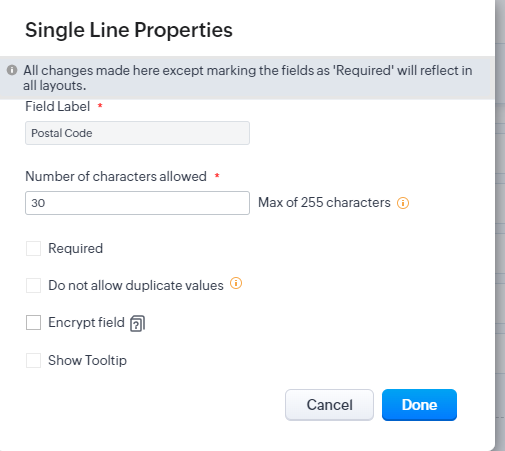
    Zoho CRM: Map Address from Lead to Deal: System Field Properties Enabled
  6. Click on "Done", then on "Save and Close".
  7. Go to the Lead Conversion Mapping page (Setup > Modules and Fields > Hover the mouse over the Leads word and click on the ellipsis/three dot icon, then select "Lead Conversion Mapping").
  8. Select your layout and map the Postal Code field of the Lead module to the Postal Code on the Deal module.
  9. Click on "Save" and then test by converting a Lead with a postal code to a Deal...


Category: Zoho CRM :: Article: 379

Joes Word Cloud

Accreditation

Badge - Zoho Creator Certified Developer Associate
Badge - Zoho Deluge Certified Developer
Badge - Certified Zoho CRM Developer

Donate & Support

If you like my content, and would like to support this sharing site, feel free to donate using a method below:

Paypal:
Donate to Joel Lipman via PayPal

Bitcoin:
Donate to Joel Lipman with Bitcoin bc1qf6elrdxc968h0k673l2djc9wrpazhqtxw8qqp4

Ethereum:
Donate to Joel Lipman with Ethereum 0xb038962F3809b425D661EF5D22294Cf45E02FebF

Credit where Credit is Due:


Feel free to copy, redistribute and share this information. All that we ask is that you attribute credit and possibly even a link back to this website as it really helps in our search engine rankings.

Disclaimer: Please note that the information provided on this website is intended for informational purposes only and does not represent a warranty. The opinions expressed are those of the author only. We recommend testing any solutions in a development environment before implementing them in production. The articles are based on our good faith efforts and were current at the time of writing, reflecting our practical experience in a commercial setting.

Thank you for visiting and, as always, we hope this website was of some use to you!

Kind Regards,

Joel Lipman
www.joellipman.com