


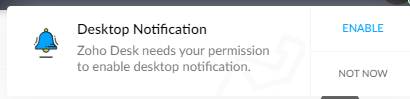
This is a quick article to re-enable desktop notifications after having been prompted initially and having clicked on "Not Now".
Why?
I'm not sure when this prompt is supposed to prompt you again. A client of ours had accidentally clicked on "Not Now" instead of clicking on the "Enable". Documented below is how to get this to prompt you again.
How?
This largely depends on whether you are using the Google Chrome web browser. In this case version 100 and is correct at time of print.
- Open Chrome Web Browser
- Click on the vertical ellipsis/3 dots icon int the top right

- Click on “Settings”
- Click on “Privacy and Security”
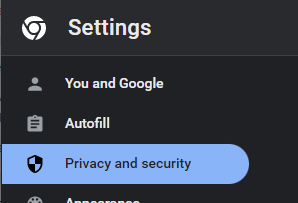
- Click on “Site Settings”

- If the ZohoDesk activity appears then click into this,

- Click on “View permissions and data stored across sites”

- Click on “zoho.eu” this will dropdown all Zoho apps

- Click on “desk.zoho.eu”

- Click on “Clear Data”
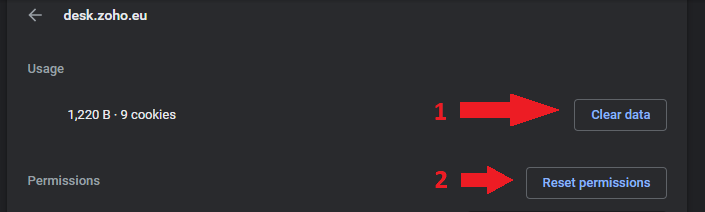
- You will be prompted to confirm, click on “Clear”
- Then also click on “Reset Permissions” (usually only if you enabled notifications previously) > Reset
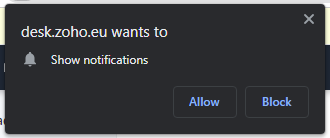
- Return to Zoho Desk and you will get the popup to enable Desktop Notification
- Click on “Enable”
- Then click on “Allow” (browser popup prompt)
For Mac Users:
Sequoia 15.1.1: System Settings > Notifications > Google Chrome > Allow Notifications.
Category: Zoho Desk :: Article: 349