

So this is an article to document the methods I use to get an image uploaded in a form to display in a report or on another page.
Why?
There might be different articles out there and discussion forums that do cover this but it takes me so long to find the solution with the right syntax.
How?
So I'm going to start with 1 method and then update this article with other methods.
Method #1: Display and access without login
So the quickest is to have a form that has an image upload field. Create an entry with one image. Then...
- Go to Settings
- Publish
- Publish Component > Select your report
- Copy the embed code it pops up with to your clipboard
- Paste this into a browser
- Right-click on the image you want and inspect the element, this will have the SRC which is the publicly accessible version that you want.
Method #2: Using Deluge
Assuming that I have a form called "MyImages" and an image upload field that has the field link name "MyImage". There is an additional single-line text field called "Name". I have added an entry with name "Logo" and I have uploaded an image accordingly.
copyraw
// change this to eu (Europe), com (US), com.cn (China), ...
v_TLD = "eu";

// my creator form
f_MyImages = MyImages[Name == "Logo"];
v_Filename = f_MyImages.MyImage.getSuffix("/image/").getPrefix("\"");

// specify publish key of published report (not the form)
v_PublishKey = "AAAAABBBBBCCCCDDDDEEEFFFGGGGHHHIIIJJJKKLLLMMMNNOOOPPPQQWRRRSSTTUUVVWWXXYYZZ122345567890";

// build image src
v_ImageSrc = "https://creator.zoho." + v_TLD + "/file" + zoho.appuri + "MyImages_Report/";
v_ImageSrc = v_ImageSrc + f_MyImages.ID + "/MyImage/image-download/" + v_PublishKey;
v_ImageSrc = v_ImageSrc + "?filepath=/" + v_Filename;

// yields something like https://creator.zoho.eu/file/myaccount/myapp/MyImages_Report/12345678901234567890/MyImage/image-download/AAAAABBBBBCCCCDDDDEEEFFFGGGGHHHIIIJJJKKLLLMMMNNOOOPPPQQWRRRSSTTUUVVWWXXYYZZ122345567890?filepath=/2138123687628736_MyLogo.png
- // change this to eu (Europe), com (US), com.cn (China), ...
- v_TLD = "eu";
- // my creator form
- f_MyImages = MyImages[Name == "Logo"];
- v_Filename = f_MyImages.MyImage.getSuffix("/image/").getPrefix("\"");
- // specify publish key of published report (not the form)
- v_PublishKey = "AAAAABBBBBCCCCDDDDEEEFFFGGGGHHHIIIJJJKKLLLMMMNNOOOPPPQQWRRRSSTTUUVVWWXXYYZZ122345567890";
- // build image src
- v_ImageSrc = "https://creator.zoho." + v_TLD + "/file" + zoho.appuri + "MyImages_Report/";
- v_ImageSrc = v_ImageSrc + f_MyImages.ID + "/MyImage/image-download/" + v_PublishKey;
- v_ImageSrc = v_ImageSrc + "?filepath=/" + v_Filename;
- // yields something like https://creator.zoho.eu/file/myaccount/myapp/MyImages_Report/12345678901234567890/MyImage/image-download/AAAAABBBBBCCCCDDDDEEEFFFGGGGHHHIIIJJJKKLLLMMMNNOOOPPPQQWRRRSSTTUUVVWWXXYYZZ122345567890?filepath=/2138123687628736_MyLogo.png
Additional Note
Just as a note to do the reverse: upload an image given a URL to an image field (prerequisite: enable the field to allow Image as "Link" not just "Local Computer" or "Camera"):
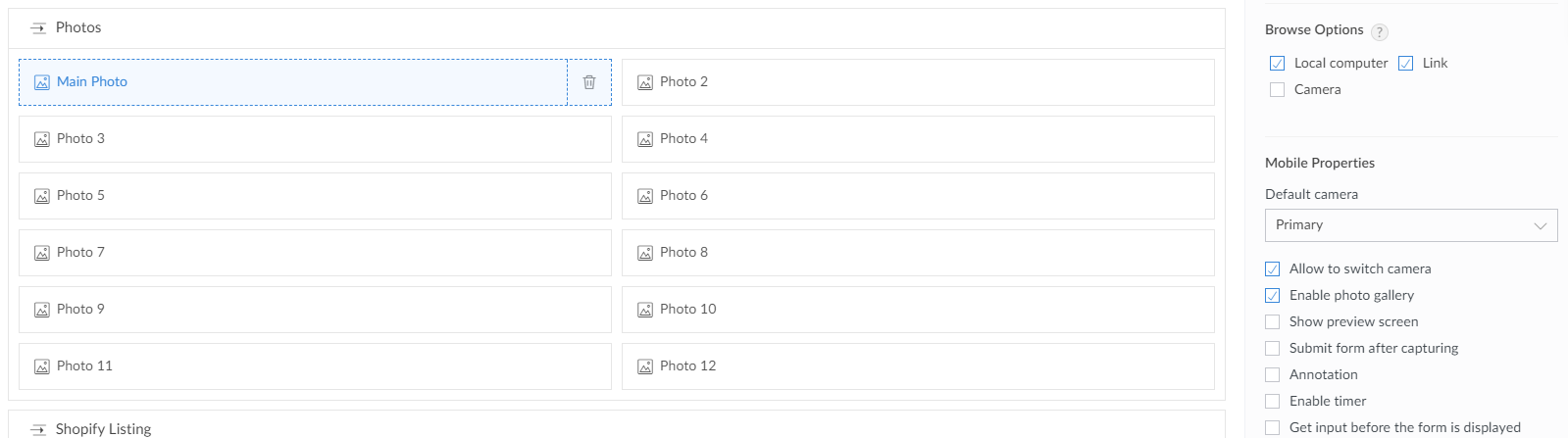
copyraw
for each  r_Image in m_Product.get("images")
{
    if(!isnull(r_Image.get("src")))
    {
        if(isnull(v_MainPhoto))
        {
            v_MainPhoto = "<img src='" + r_Image.get("src").getPrefix("?") + "' alt='"+r_Image.get("alt").replaceAll("'", "")+"' />";
            info v_MainPhoto;
            // yields: <img src='joels-test-image.jpg' alt='joels test image'/>
            input.Main_Photo = v_MainPhoto;
        }
    }
}
- for each r_Image in m_Product.get("images")
- {
- if(!isnull(r_Image.get("src")))
- {
- if(isnull(v_MainPhoto))
- {
- v_MainPhoto = "<img src='" + r_Image.get("src").getPrefix("?") + "' alt='"+r_Image.get("alt").replaceAll("'", "")+"' />";
- info v_MainPhoto;
- // yields: <img src='joels-test-image.jpg' alt='joels test image'/>
- input.Main_Photo = v_MainPhoto;
- }
- }
- }
Category: Zoho Deluge :: Article: 266