

Administrator Program Shortcut without Prompt
- Category: Windows OS
- Hits: 41465
- Microsoft Windows 7 Enterprise
- User with Local Administrator Privileges (required for setup)
Why?
Our work has group policies and two of our programs, Visual Studio 2010 Ultimate (VS2010) and Business Intelligence Development Studio (BIDS), require elevated or administator rights/privileges when run. This is so that these programs can write back and forth to our C drive. If we don't run them as local administrators on the workstation, they error incessantly and never manage to do what you want them to do.
What?
I want to create a desktop shortcut that I can double-click and it will run the above programs in administrator mode without confirmation by the Windows operating system. At home this may not be a problem but this is intended for those in an office environment and we get prompted to login (with the same account as we're currently logged-in with???) instead of being able to just click on "Yes".
How?
The gist is that we're going to create a scheduled task (that won't be scheduled) and a shortcut to that task:
Set up Desktop SlideShow in Windows 7
- Category: Windows OS
- Hits: 34810
Applies to Windows 7.
Requires a Vogonian environment of red tape and bureaucracy.
This is an article to describe an alternative method then "right-clicking on the desktop", "selecting Personalize", "clicking on Desktop Background", "browsing to the Picture Location". The problem happens when browsing to the picture location and it doesn't seem to remember which folder you selected. At home, this would be a breeze, but that's because I don't implement group policies at home.
Why?
We get problems with this because none of our staff are full administrators of their local workstation. As IT staff we have elevated privileges but not absolute rights to configuring our computer. And we still need to re-login for every change. About a zillion group policies control our every deviation from the standard staff image and so we spend more time on "how do you make it like it was in XP?" situations.
How?
Who doesn't want to change their desktop background wallpaper? Using Windows 7, who doesn't want it to be a slideshow as well?
Print Directory Contents to a File
- Category: Windows OS
- Hits: 30749
A friend asked me if there was a quick way to simply right-click on a folder in Windows Explorer and it would generate a text file with the contents of the directory he right-clicked.
What?
We can do this by adding an entry to the context menu (when you right-click on an object). The following is a method of adding this as a single command similar to how we add the "Command prompt from here" option (now built-in to Windows 7). I added this option for him in Windows 7 Ultimate using the system registry (see "How: for Windows 7" below).
-- yield

a_subfolder_in_this_folder
a_file_in_this_folder.txt
another_file_in_this_folder.doc
How?
Increase Recent Documents Number in Windows XP
- Category: Windows OS
- Hits: 14371
Just a quick note here. This is an article based on the REG file from Kelly's Korner (@www.kellys-korner-xp.com/xp_tweaks.htm). I'm not fond of downloading REG files and running them even if I have checked what it's doing. I'm putting a note here just for me:
- Start > Run > Regedit > OK
- Browse to HKEY_CURRENT_USER\Software\Microsoft\Windows\CurrentVersion\Policies\Explorer
- Create New DWORD Value
- Name it "MaxRecentDocs"
- Double-click on the new DWORD
- Set value data to "19" ( equals 25 )
- Leave Base as "Hexadecimal"
- OK
- Restart your computer
Run commands for Windows
- Category: Windows OS
- Hits: 44872
This is an article intended for IT Support. It is a list of the system tools available in the Microsoft Windows OS that can be run from the "Start > Run" option.
How?
Running Internet Explorer 6, 7, 8 as standalones
- Category: Windows OS
- Hits: 70593
Intro
I know there are a lot of articles on the WWW detailing this process but none of them really worked for me. I recently changed job and no longer have all my test machines at work. Instead I only have the one workstation :eek Still I've been asked to test some web applications (???) so I had to find a solution to suit me. I'd done this before IE7 (so a long time since).
My office workstation setup for this is:
- HP CMT DC7900
- E5300 @ 2.60Ghz
- 2Gb RAM
- Windows XP Professional SP2
- Internet Explorer 7
As you can tell, not the most up-to-date but unfortunately I need to stay near to my customer base and match their setups as closely as possible.
Windows 7 Aero Features
- Category: Windows OS
- Hits: 48714
Thought I'd put something here as a lot of my clients and friends are all surprised by the Aero features and weren't aware that these existed in Windows Vista (and originally from Linux variants).
Sometimes you may only have partial Aero effects. This can be because Windows may not think your machine is powerful enough to run these effects without affecting performance.
If this is happening to you, and you don’t mind about a possible slight slow down on performance you can force enable them -
- Go to Control Panel -> System and Security -> System
- Click on advanced system settings on the left and then performance settings.
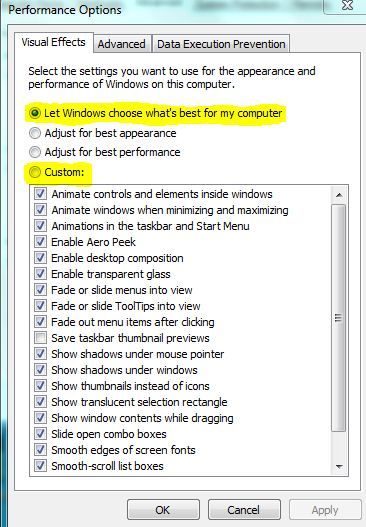
- Under the visual effects tab you should see that the option “ Let windows choose what’s best for my computer “ is by default checked.
- Below it you should see a list of visual effects, some of which will be unchecked if you are not experiencing the full range of Aero features.
- Select the custom option and then select all the effects from the list below it. Hit apply and ok and you should have all the Aero effects enabled.
Now what are these Aero effects?
Another ASCII Extended Character Set for PC
- Category: Windows OS
- Hits: 10019
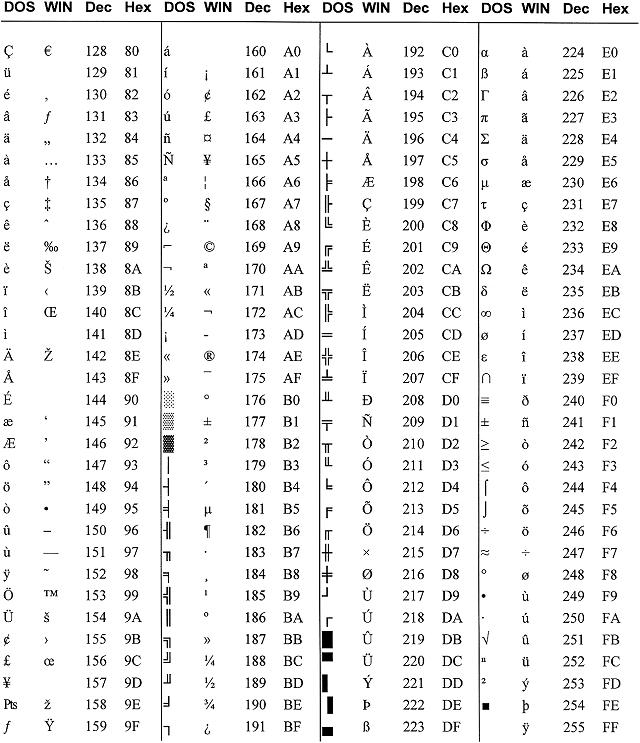
Typing an ASCII character
- In DOS:
- Hold down the <Alt> key while typing the decimal number on the keyboard keypad. (Example: <Alt>178)
- In Windows for a DOS character:
- Hold down <Alt> while typing the decimal on the keyboard keypad. (Example: <Alt>230)
- In Windows for a WIN character:
- Hold down <Alt> while typing "0" then the decimal number on the keyboard keypad. (Example: <Alt>0140)