

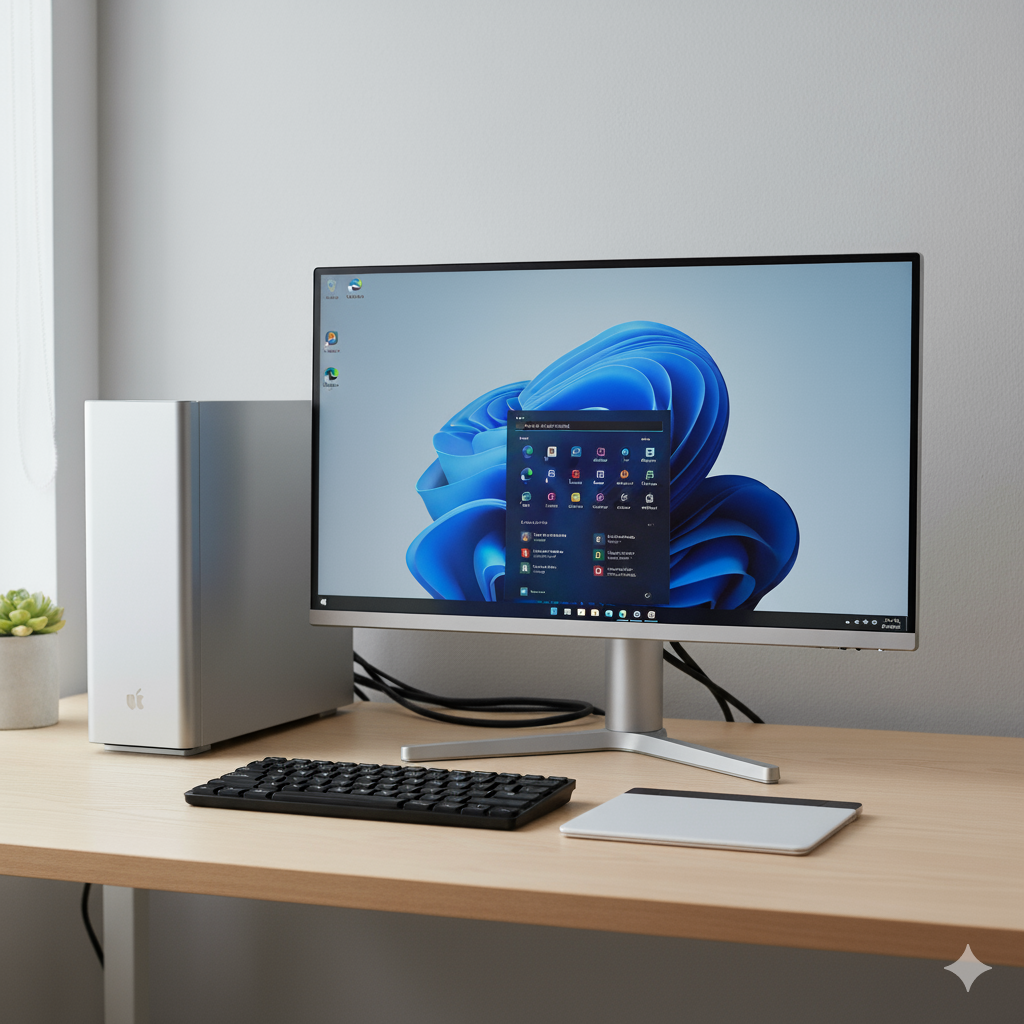
Apple Magic Trackpad with Windows 11 Intel
- Category: Windows OS
- Hits: 25209
A quick article to get an Apple Trackpad working with an MS Windows 11 Pro (Intel 64) workstation.
Why?
I forgot my work Macbook at home and rather than drive the commute back and forth again, I took my previous biscuit box out (a Dell MFF Optiplex 7070) and spent 30 minutes connecting monitors and the logitech receiver for my keyboard (which was a Logitech keyboard for Windows - keys switched for the Mac but reverted for the biscuit box). Running MS Windows 11 pro already. Wifi was ok to connect and my Microsoft Office apps, well it's a Windows box so no issues there either... Webcam and headset previously connected to my docking station weren't too much of an issue either as MS Windows detected these without needing software.
Long rant to justify why I didn't want to drive home (~20 to 40 minutes commute) and pick up my laptop.
How?
The work and research for this was all in one YouTube video by LinxHype (https://www.youtube.com/watch?v=J_z9-rE_6zI) so I don't want to take credit for it. There were other videos using the GitHub repo: GitHub / imbushuo / mac-precision-touchpad but those instructions seemed only for those on an AMD or ARM processor. The process demo'd by LinxHype is the one that worked for me.
Windows OS: Alt Codes / Symbols / Special Characters
- Category: Windows OS
- Hits: 35685
This is a simple article to demonstrate how to type special characters not found on your keyboard or on a Qwerty UK/US keyboard layout.
Why?
Being able to type international characters from other alphabets is necessary when dealing with languages other than English. Preserving files in unicode or utf-8 encoding will help but there will be times when you have lost the formatting and get weird question mark characters instead such as: .
How?
Ensure you are using the numbers on your numeric keypad and NOT the numbers at the top of your keyboard for the following steps. Also check that you have "Num Lock" on/enabled. Typing a special character is 3 easy steps:
- Hold down the ALT key (preferably the one on the left of the spacebar and not the Alt Gr often found on the right of the spacebar)
- then press the numbers in the numeric pad (while still holding down the ALT key),
- then let go of the ALT key.
Windows 10: Shortcut Apps to Settings
- Category: Windows OS
- Hits: 49998
- Microsoft Windows 10 Pro v10.0.18362
This is a list of apps that if run via the run command, or used in a desktop shortcut, or that you want to include in automation software such as AutoHotkey, opens any specific Windows OS settings page. This does not make the change to the setting itself, just displays it to the user for them to make the choice.
Why?
I needed a command that can be run from the command-line in an AutoHotkey app to open the notifications page of the Windows 10 Settings panel to allow users to enable/disable notifications. Why write this article when there's a perfectly ok post on the Microsoft website? Well I could bookmark that page or save myself a click...
How?
To test any of the following, type the windows key and select "Run..." ( + R). Then type the value in the 2nd column "App to Run" then OK to run it:
Windows Live Mail Error ID: 0x8DE00005
- Category: Windows OS
- Hits: 25001
- Windows Live Mail 2012
A quick article on how to update the Microsoft Live Server URL for Hotmail using Windows Live Mail. Well how to deactivate an account and set up a new one in Windows Live Mail. If you used IMAP all along then the new account will have all your mail.
The error
Unable to send or receive messages for the Hotmail (someone) account.

Subject 'your Microsoft Issue'
Server Error: 3219
Windows Live Mail Error ID: 0x8DE00005
Unable to send or receive messages for the Hotmail (someone) account.

Server Error: 3219
Server: 'https://mail.services.live.com/DeltaSync_v2.0.0/Sync.aspx'
Windows Live Mail Error ID: 0x8DE00005
How?
I don't remember the time when the Microsoft website became helpful but as they already have an article on this, I'm going to do a bunch of screenshots:
VBScript to retrieve Windows Product Key
- Category: Windows OS
- Hits: 19799
A quick article with the code to retrieve your product key in Windows 7 with a small VB script file. There are other articles on the web about this but the ones I found returned errors such as WshShell not valid. This article has a working example applicable to Windows 7 Professional.
Why?
With the Windows 10 operating system offered as a free upgrade (for Windows 7 or later at time of print), I needed the serial number / product key from my Windows 7 Professional 32-bit operating system. I didn't want to dig through my CD/DVDs to find my original windows 7 disc and no longer have access to the email account when I purchased Windows 7 (my university one).
How?
I'm going to use my trusty notepad program, copy the following code to it, and run it:
Hide a Drive per User in Windows 7
- Category: Windows OS
- Hits: 48172
- Microsoft Windows 7 Professional
Looking at ways of displaying different drives per user on a single computer. This one is by modifying the system registry, so if you aren't familiar with the system registry in MS Windows, you may need to find someone who is.
How?
As a proof of concept, let's see how to hide a specific drive. Note that this section applies to the currently logged-in user.
Administrator Program Shortcut without Prompt
- Category: Windows OS
- Hits: 41324
- Microsoft Windows 7 Enterprise
- User with Local Administrator Privileges (required for setup)
Why?
Our work has group policies and two of our programs, Visual Studio 2010 Ultimate (VS2010) and Business Intelligence Development Studio (BIDS), require elevated or administator rights/privileges when run. This is so that these programs can write back and forth to our C drive. If we don't run them as local administrators on the workstation, they error incessantly and never manage to do what you want them to do.
What?
I want to create a desktop shortcut that I can double-click and it will run the above programs in administrator mode without confirmation by the Windows operating system. At home this may not be a problem but this is intended for those in an office environment and we get prompted to login (with the same account as we're currently logged-in with???) instead of being able to just click on "Yes".
How?
The gist is that we're going to create a scheduled task (that won't be scheduled) and a shortcut to that task:
Set up Desktop SlideShow in Windows 7
- Category: Windows OS
- Hits: 34733
Applies to Windows 7.
Requires a Vogonian environment of red tape and bureaucracy.
This is an article to describe an alternative method then "right-clicking on the desktop", "selecting Personalize", "clicking on Desktop Background", "browsing to the Picture Location". The problem happens when browsing to the picture location and it doesn't seem to remember which folder you selected. At home, this would be a breeze, but that's because I don't implement group policies at home.
Why?
We get problems with this because none of our staff are full administrators of their local workstation. As IT staff we have elevated privileges but not absolute rights to configuring our computer. And we still need to re-login for every change. About a zillion group policies control our every deviation from the standard staff image and so we spend more time on "how do you make it like it was in XP?" situations.
How?
Who doesn't want to change their desktop background wallpaper? Using Windows 7, who doesn't want it to be a slideshow as well?