


PC Build 2022: 5 Monitors connected to 1 PC using 1 GPU
- Category: Articles
- Hits: 89542
This is a quick article on how I built my 2022 workstation and got 5 monitors working with only 1 graphics card.
Why?
This took me a good few hours to get working so I thought this article could help others. It's also a chance to show off my build. Although not high budget like lots of YouTubers I drew inspiration and advice from, it's my first build in a long time. It's always been a dream of mine (see my pinterest) to build a nicer looking computer and I was given £1000 towards a new computer... It's more than enough to get a running White Snow Edition PC but I put in some more to get the Graphics Card, more RAM, more fans, more...
What I had:
| Personal Home PC | Work-from-Home PC | |
|---|---|---|
| Case | Antec Fusion Black 430 | Dell OptiPlex 9020 Micro Form Factor |
| CPU | i3 4th Gen | i7 4th Gen |
| RAM | 4Gb | 8Gb |
| GPU | Nvidia Geforce GT 610 | ??? |
| O/S | MS Windows 7 Pro (32-bit) | MS Windows 10 Pro (64-bit) |
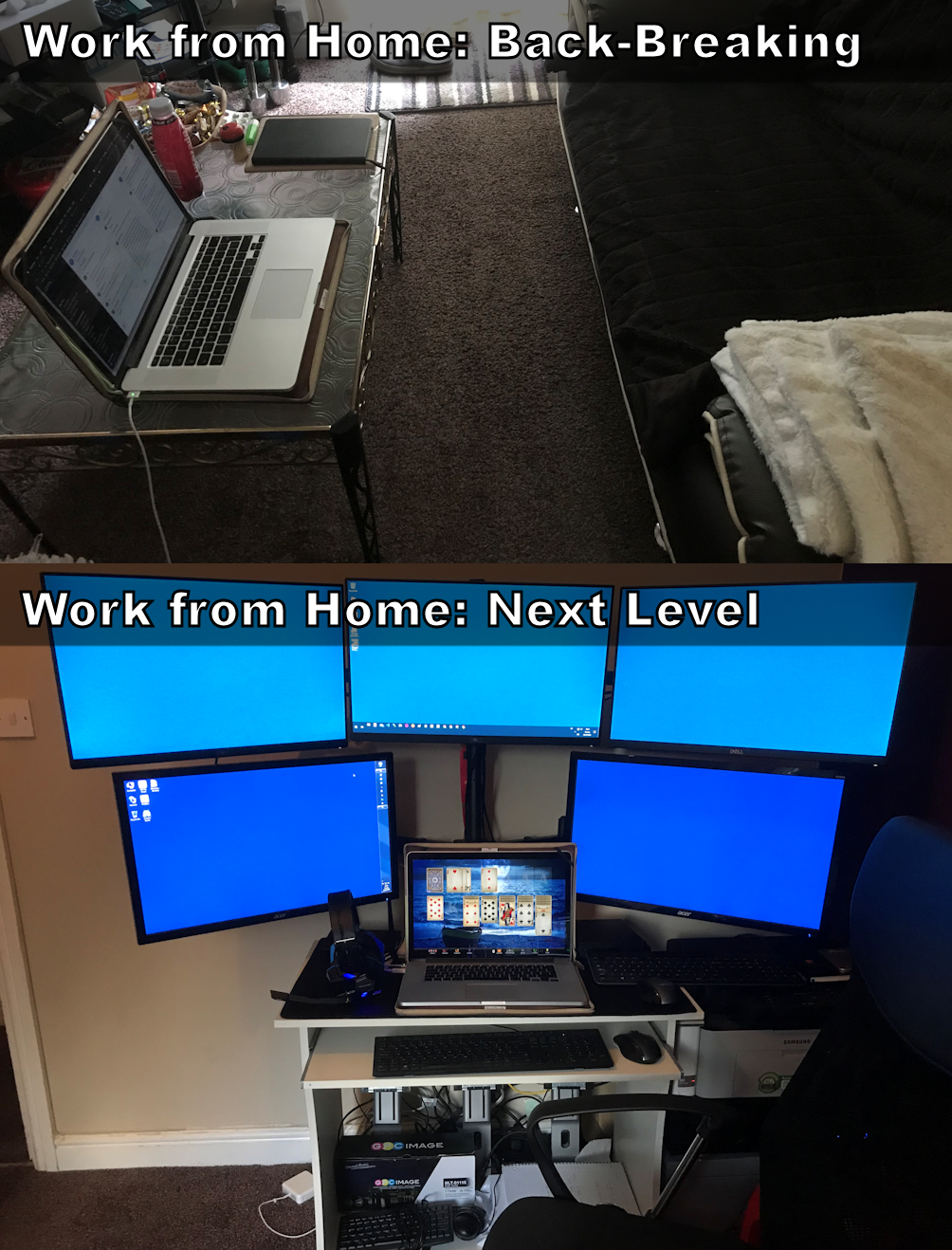
Here's a photo of my previous setup (when Lockdown due to COVID-19 first happened). The work PC connected to the 3 monitors at the top and the home PC connected to the 2 monitors underneath:
How?
My upgrade for 2022, is that all monitors are now connected to my home PC. The way to do this might be different for you depending on the components of your PC.
COVID-19: Working from Home
- Category: Articles
- Hits: 23692
"relating to or designed for efficiency and comfort in the working environment."
So it's pretty important not to be slouching over the coffee table for hours or days on end. I was waiting to move house during 2020 but then a virus capable of locking down the world manifested itself. I thought this would be temporary but after 4 months of slouching over the coffee table, my back is suffering terribly. I figured on a personal DSE assessment and setup my workstation as a more permanent solution. For fun, our office have posted what taking your work home, including the work computer, looks like...
I made mine into a meme:
Thank You for your donation!
- Category: Articles
- Hits: 40833
As an IT professional, I feel that both OpenSource and Commercial applications have their benefits and neither should go. My day job doesn't involve any Joomla! material but has many Content Management Systems (CMS) commercial equivalents.
I use any donations to justify working on Joomla! specifically; but like to add things I learn along the way :c)
Kind Regards,
Joel Lipman
Basic Webpage Controls with JavaScript / COM
- Category: AutoHotkey
- Hits: 100768
Source: Jethrow @ Autohotkey Forums
AutoHotkey: Get Media Information and Display
- Category: AutoHotkey
- Hits: 34925
- Microsoft Windows 7 Professional v6.1.7601 32-bit
- AutoHotkey v1.1.33.02
What?
This is a copied article just to store a permanent reference for if I ever need to build an app similar to the file explorer in the Microsoft Windows OS.
Why?
I had an app for use in MS Windows 7 to display the properties of sound files though this is also applicable to media files in general.
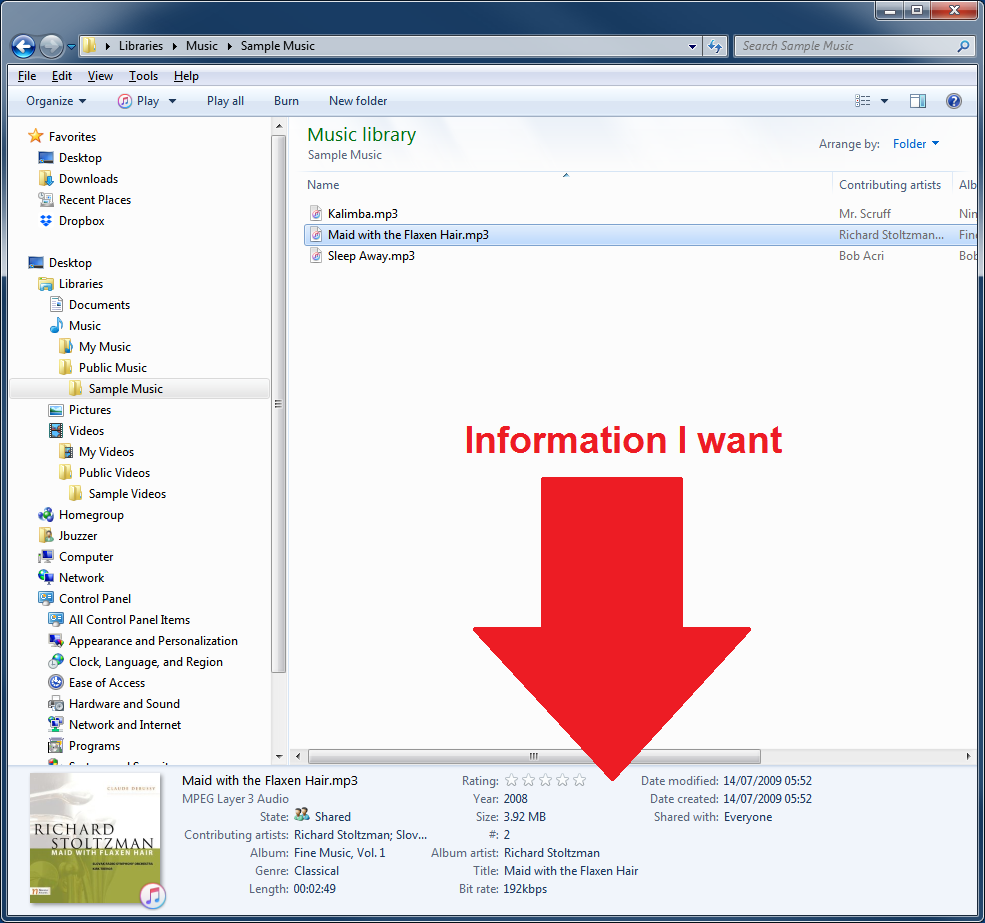
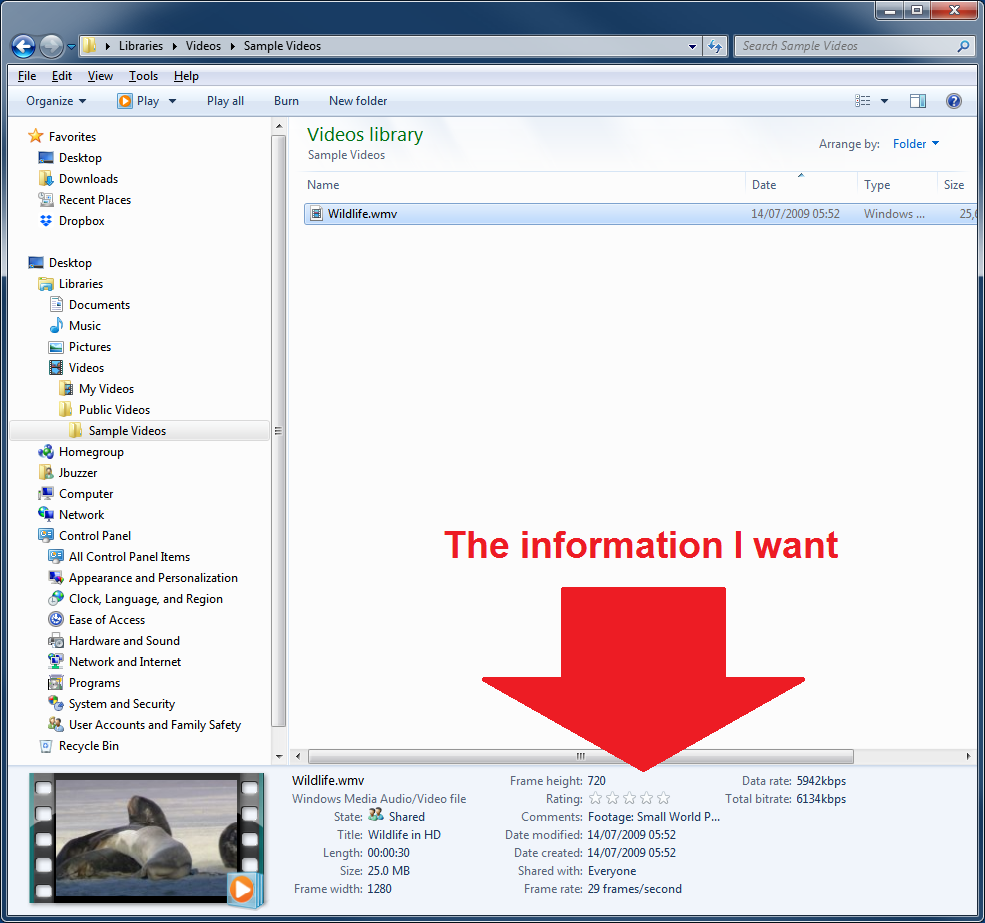
How?
So first I'm going to list a function I use called "Filexpro()", then list some examples of usage. And in the second-to-last section, I'll quickly convert a 100 nanoseconds unit to display Hours : Minutes : Seconds.
AutoHotkey: App GUI Listview to Rename Files
- Category: AutoHotkey
- Hits: 46547
- Microsoft Windows 7 Professional - Service Pack 1
- AutoHotkey v1.1.33.02
So this is the documentation for a snippet of code that will list files of a directory using an AutoHotkey GUI and display what it will name them. The app needs to rename files but append an incremented count if the name of a file already exists. The original file needs to keep its original name.
What I have
EDIT 0_00 0_30 My File 1 00_00 00_30.txt
edIT 0_00 0_31 My File 2 00_00 00_30.txt
eDIT 0_00 0_30 My File 3 00_00 00_31.wav
My File 3.wav
My File 3 - Copy.wav
What I want
My File 1.txt
My File 2.txt
My File 3 (2).wav
My File 3.wav
My File 3 (3).wav
How?
So if you copy the following code into an AutoHotkey file and execute it, it will popup an app with 3 buttons: 1st to generate or populate a list of the files in the script directory, the 2nd to do the actual renaming. A text field is provided (defaults to A_ScriptDir) to specify what folder to scan for files. The 3rd button simply reloads the app (used mostly for testing/development). Lastly, a listview that has 2 columns: the 1st lists the files in that directory, the 2nd displays the new filenames of the files.
Autohotkey - Chrome Profiles in Alphabetical Order
- Category: AutoHotkey
- Hits: 27737
- MS Windows 10 Pro v10.0.18362 Build 18362 (64-bit)
- Google Chrome Browser v79.0.3945.88 (Official Build) (64-bit)
- AutoHotkey v1.1.30.01
This is an article to create a standalone application which lists all the Google Chrome Profiles on your Windows 10 workstation in alphabetical order.
Why?
This program will be redundant if Google ever update their Chrome browser to list the multiple profiles in alphabetical order like it used to be... but to date they have not. So I made a program that lists the profiles in alphabetical order and can be double-clicked to open the Chrome browser with that profile.
How?
So you will need to be able to run AutoHotkey or create executables from an AHK file.
AutoHotkey - MS Windows 10 - Open Apps on Multiple Monitors and Desktops
- Category: AutoHotkey
- Hits: 52377
- Microsoft Windows 10
- AutoHotkey 1.1.30
Yay for Microsoft Windows 10 in joining the rest of the Operating Systems in implementing multiple desktops. So if you have a Mac or Linux system, you will know of a feature where you can have another virtual desktop on your device.
For those that don't know it, the feature is similar to mobile phones where you swipe left/right to reveal another screen of app icons. The same can be done to the desktop versions with open applications instead of just their icons.
Why?
MS Windows 10 has made a major step but when you close down your PC and log back in, all the applications are grouped into the one desktop. If you have a multiple monitor setup (ie. more than 1 monitor), then MS Windows will almost remember which apps were open on which screen but always on Desktop 1.
In addition, there are some developments on AutoHotkey forums where people are having difficulties opening an app on their second monitor. So I thought I'd jot down some notes here on how I've achieved this across multiple monitors... and now multiple desktops.
How?
The following example is assuming you have 3 monitors and 3 desktops. I'm going to cover the basic code to: 1) get all monitors, 2) open an app on a specified monitor, 3) switch to another desktop.