What?
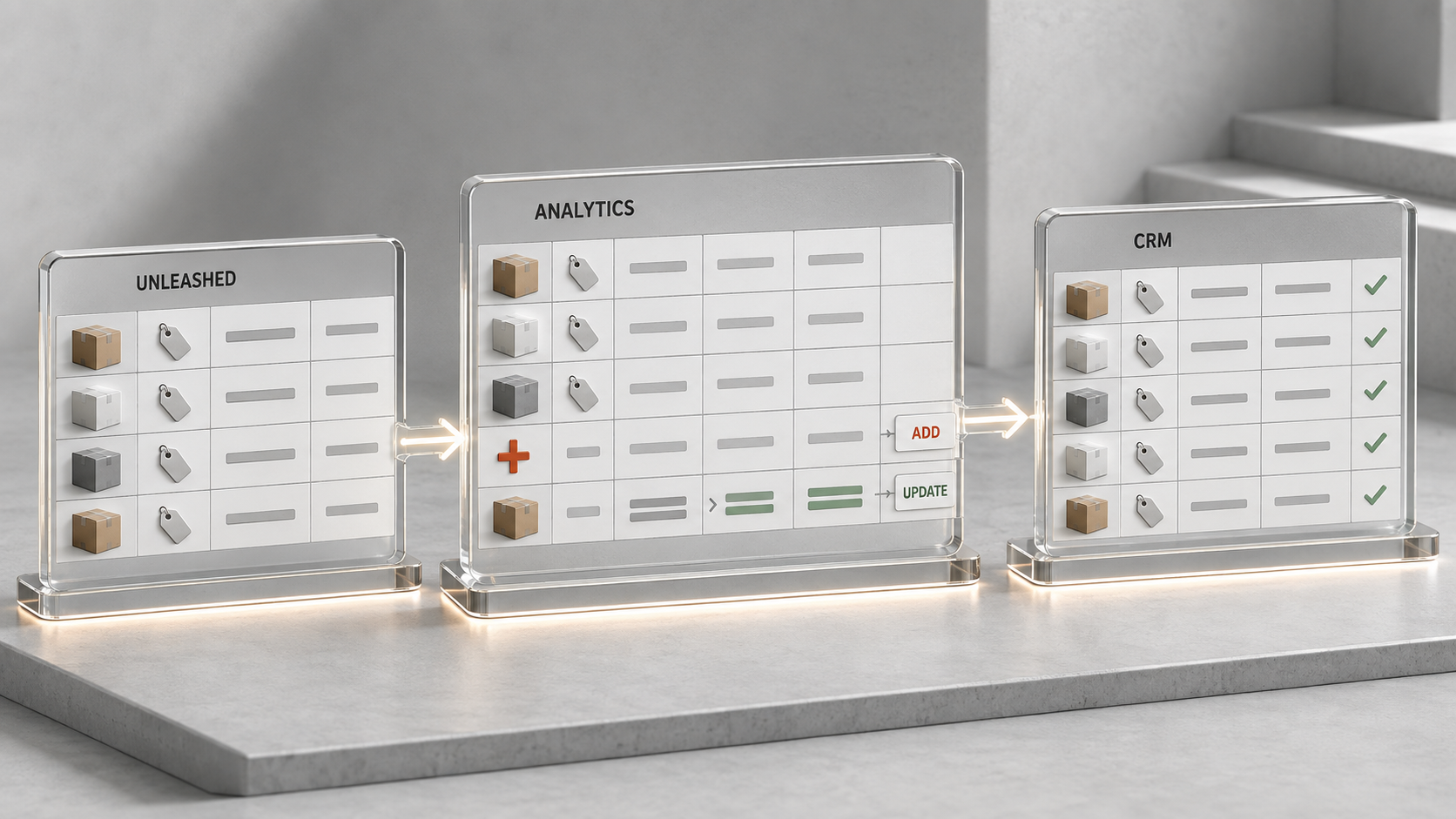
A quick article on using a Zoho Analytics discrepancy table to add missing products and update existing product records in Zoho CRM. In this example, Unleashed supplies the product details, Zoho Analytics identifies the differences, and a scheduled Deluge function applies the changes to a custom CRM module.
Why?
I wanted CRM to reflect the product information held in Unleashed without rewriting every product record each morning. Changes to a description, selling price, product name or obsolete status should be reflected in CRM, while products that already match should be left alone.
The comparison belongs in the Analytics query. Its results tell the function what to do: ADD a missing product, or UPDATE an existing one using its CRM record ID. The function itself does not calculate discrepancies or connect directly to Unleashed.
This separates the comparison from the record updates and gives me a table I can inspect before anything is changed in CRM. It also avoids making a CRM write request for every unchanged product.
How?
1. Create the target table in Zoho Analytics
- Open the destination workspace in Zoho Analytics.
- Click the plus (+) and select New Table / Import Data.
- Select Analytics Workspace as the source, then select the workspace containing the data to compare.
- Choose Table and select your product-comparison SQL. (this allows for further adjustments to the query later on)
- Preview the results and give the imported table a name, for example Product Discrepancies.
- Configure the import to run daily at 7:00am, checking which time zone the schedule uses.
- Run the initial import and check the resulting rows before connecting the CRM function.
The source product and CRM data must already be available to the comparison query. Schedule their own synchronisations before this import. The SQL will depend on your source table names, field names and product-matching key; the function below expects the output columns listed in the next section.
Zoho supports custom-query imports from another Analytics workspace, subject to the appropriate administrator permissions, and supports scheduling these imports. See Importing Data from Zoho Analytics Workspace.
Important: use the view ID of the resulting imported table. This is different from exporting a native Analytics Query Table directly: Zoho's synchronous Export Data API excludes native Query Tables and directs those requests to its asynchronous export APIs. See the restrictions in Export Data.
2. Prepare the expected columns
My query produces one row per product requiring action. Match products using a stable unique key, such as an external product ID or product code, rather than the product name. A renamed product should still match the same CRM record.
| Analytics column | Purpose |
|---|---|
Action | ADD when there is no matching CRM record; UPDATE when an existing record differs. Other values are ignored by this function. |
CRM ID | The existing CRM record ID for an update. It can be empty for an addition. |
Unleashed Product Name | The product name to write to CRM. |
Unleashed Product Description | The product description to write to CRM. |
Unleashed Default Sell Price | The selling price, using a numeric value suitable for the destination field. |
Unleashed Is Obsolete | The obsolete status. In this result set it is exported as text, such as "false" or "true", and the function converts it to a Boolean before writing to CRM. |
These column aliases must match the names used in m_DataRow.get(...) exactly. Ideally, exclude unchanged products from the query altogether.
3. Note the workspace, view and organisation IDs
Open the imported table and note the workspace ID and view ID from its address. These must identify the destination workspace and table being read by the function, not just the source of the import.
For the organisation ID, open any page within that Analytics organisation's settings and note the final numeric organisation identifier in the URL. This is the Zoho Analytics organisation ID, not a CRM organisation ID. If your settings URL uses a different format, the Analytics API specification also links to the Get Organizations API.
All three real identifiers have been replaced with placeholders in the published example. The connection name has also been generalised. Keep your own identifiers and connection details in your private function configuration.
4. Configure the connection and CRM module
Create or authorise a Zoho Analytics connection in the CRM function environment. This example calls it analytics_connection; replace that literal with your connection's link name. The export requires the ZohoAnalytics.data.read scope and access to the target table. See Analytics API prerequisites.
The endpoint below uses the European data centre, analyticsapi.zoho.eu. Use the API host matching your own Analytics account, as listed in Zoho's data-centre API hosts.
The CRM module in this example is a custom module with the API name Unleashed_Products. It is not the standard Products module. Replace the module and field API names with the ones in your own CRM setup:
| Analytics source column | CRM field API name |
|---|---|
| Unleashed Product Name | Name |
| Unleashed Product Description | Product_Description |
| Unleashed Default Sell Price | Default_Sell_Price |
| Unleashed Is Obsolete | Is_Obsolete |
Check that the function's CRM execution context has permission to create and update these records, and include any additional mandatory fields required by your module.
5. Add the standalone Deluge function
One thing that needed fixing was the obsolete flag. The value returned in this Analytics result set is text, whereas I need to pass a Boolean to the CRM Is_Obsolete field. The revised function sets b_Obsolete to the Boolean false when the source value equals the text "false", and to the Boolean true otherwise. This conversion is applied in both the UPDATE and ADD sections.
Check the source values: this is a rule for the result set shown, not a general-purpose Boolean parser. It treats anything other than the exact lowercase text "false" as true. Normalise or validate unexpected, differently capitalised or blank values before using this approach with another table.
The example below follows the revised function, with formatting cleaned up and the organisation, workspace, view and connection identifiers replaced for publication.
string standalone.fn_Products_AnalyticsDiscrepancies()
{
    /* *************************************************************************
    Function:       string standalone.fn_Products_AnalyticsDiscrepancies()
    Label:          Fn - Products - Analytics Discrepancies
    Trigger:        Standalone; schedule for 7:30am
    Purpose:        Read product discrepancies from Analytics and apply to CRM
    Inputs:         None
    Outputs:        Summary of additions, updates and rows processed
    Date Created:   2026-09-02 (Joel Lipman)
    More Information:
        https://www.zoho.com/analytics/api/v2/bulk-api/export-data.html
    ************************************************************************* */

    // Initialise counters.
    v_CountTotal = 0;
    v_CountAdded = 0;
    v_CountUpdated = 0;

    // Replace these placeholders with your own Analytics identifiers.
    v_ZA_WorkspaceID = "YOUR_ANALYTICS_WORKSPACE_ID";
    v_ZA_ViewID = "YOUR_ANALYTICS_VIEW_ID";
    v_ZA_OrgID = "YOUR_ANALYTICS_ORG_ID";

    // Build the export request.
    m_Header = Map();
    m_Header.put("ZANALYTICS-ORGID",v_ZA_OrgID);

    m_Params = Map();
    m_Params.put("responseFormat","json");

    m_Config = Map();
    m_Config.put("CONFIG",m_Params);

    // This example uses the EU data centre.
    v_Endpoint = "https://analyticsapi.zoho.eu/restapi/v2/workspaces/" + v_ZA_WorkspaceID + "/views/" + v_ZA_ViewID + "/data";

    r_ZaProducts = invokeurl
    [
        url :v_Endpoint
        type :GET
        parameters:m_Config
        headers:m_Header
        connection:"analytics_connection"
    ];
    //info r_ZaProducts;

    // Read the rows returned by Analytics.
    l_DataRows = ifnull(r_ZaProducts.get("data"),List());
    info "Resultset Size: " + l_DataRows.size();

    for each m_DataRow in l_DataRows
    {
        v_CountTotal = v_CountTotal + 1;
        if(v_CountTotal > 1000)
        {
            break;
        }
        v_Action = ifnull(m_DataRow.get("Action"),"NONE");
        //info v_Action;

        if(v_Action == "UPDATE")
        {
            v_ZcrmRecordId = m_DataRow.get("CRM ID");

            m_UpdateCrm = Map();
            m_UpdateCrm.put("Name",m_DataRow.get("Unleashed Product Name"));
            m_UpdateCrm.put("Product_Description",m_DataRow.get("Unleashed Product Description"));
            m_UpdateCrm.put("Default_Sell_Price",m_DataRow.get("Unleashed Default Sell Price"));
            // Convert the exported text flag to a Boolean.
            b_Obsolete = if(m_DataRow.get("Unleashed Is Obsolete") == "false",false,true);
            m_UpdateCrm.put("Is_Obsolete",b_Obsolete);

            r_UpdateCrm = zoho.crm.updateRecord("Unleashed_Products",v_ZcrmRecordId,m_UpdateCrm);
            //info r_UpdateCrm;
            if(!isNull(r_UpdateCrm.get("id")))
            {
                v_CountUpdated = v_CountUpdated + 1;
            }
        }

        if(v_Action == "ADD")
        {
            m_CreateCrm = Map();
            m_CreateCrm.put("Name",m_DataRow.get("Unleashed Product Name"));
            m_CreateCrm.put("Product_Description",m_DataRow.get("Unleashed Product Description"));
            m_CreateCrm.put("Default_Sell_Price",m_DataRow.get("Unleashed Default Sell Price"));
            // Convert the exported text flag to a Boolean.
            b_Obsolete = if(m_DataRow.get("Unleashed Is Obsolete") == "false",false,true);
            m_CreateCrm.put("Is_Obsolete",b_Obsolete);

            r_CreateCrm = zoho.crm.createRecord("Unleashed_Products",m_CreateCrm);
            //info r_CreateCrm;
            if(!isNull(r_CreateCrm.get("id")))
            {
                v_CountAdded = v_CountAdded + 1;
            }
        }
    }

    return "Added " + v_CountAdded + " and Updated " + v_CountUpdated + " of " + v_CountTotal;
}
6. Test, then schedule for 7:30am
Test against a development CRM environment first, using a small set containing one addition, one update and an unchanged product excluded by the query. Confirm that names, descriptions, prices and obsolete flags arrive in the expected fields.
Once the results are correct, schedule the function to run daily at 7:30am. Check the time zones on both schedules. The intended order is: refresh the source data, import the discrepancy table at 7:00am, then run the CRM function at 7:30am. The thirty-minute gap is a buffer, not a guarantee that either refresh has finished; check their completion times and allow longer when needed.
For example, a successful run might return:
Added 4 and Updated 18 of 22The addition and update counters increase only when the corresponding CRM response includes an id. The total is the loop counter, including rows whose action is not recognised or whose CRM write fails; it is not a count of successful changes. In this version, the counter increments before the limit check, so a result set larger than 1,000 rows can report a total of 1,001 even though only 1,000 rows are processed.
Optional: filter the export while testing
To test a known existing CRM record, add a criterion to m_Params before creating m_Config. Column identifiers use double quotes; string values use single quotes. The double quotes are escaped inside the Deluge string. See Analytics filter criteria.
v_ExampleCrmID = "YOUR_EXISTING_CRM_RECORD_ID";
m_Params.put("criteria","\"CRM ID\"='" + v_ExampleCrmID + "'");
This restricts the export to that record; it will not test an ADD row with no CRM ID. Remove the criterion when returning to the full scheduled run.
A few things to bear in mind
- Avoid duplicate additions. The function uses
createRecord, not an upsert. Running it twice against the same staleADDrows can create duplicates. Store and enforce a unique source-product identifier in CRM, and include it in the creation mapping and future comparison. The four-field example above does not add that identifier for you. - Refresh both sides of the comparison. After a run, the updated CRM data must be synchronised back into Analytics before generating the next discrepancy table. Otherwise, completed changes can keep appearing as outstanding work.
- Monitor errors separately. This is a minimal example, not a complete retry or monitoring system. A missing
datavalue falls back to an empty list, so do not treat a zero-count result alone as proof of a successful export. Inspect failed Analytics and CRM responses, and avoid leaving full product data in routine logs. - The 1,000-row cap is local to the loop. It does not limit the export payload, paginate the remaining rows, or guarantee completion within CRM execution limits. Reduce it if necessary and design explicit batching when the discrepancy table grows.
- Review blank values and field types. A blank source description or price can overwrite an existing CRM value. The obsolete conversion in this function uses an exact text comparison and otherwise selects
true; do not let unexpected source values silently mark active products as obsolete. - Protect authentication separately. The published IDs are placeholders, but IDs are not passwords. Keep OAuth tokens and secrets out of public code, use a managed connection, and grant only the access the function needs.
The end result is a small scheduled integration: Analytics identifies the product differences, and Deluge applies the additions and updates to CRM.
Discussion
Comments
Questions, corrections and useful additions are reviewed before appearing here.
Discussion Newest first
No comments yet. Start the discussion.