What?
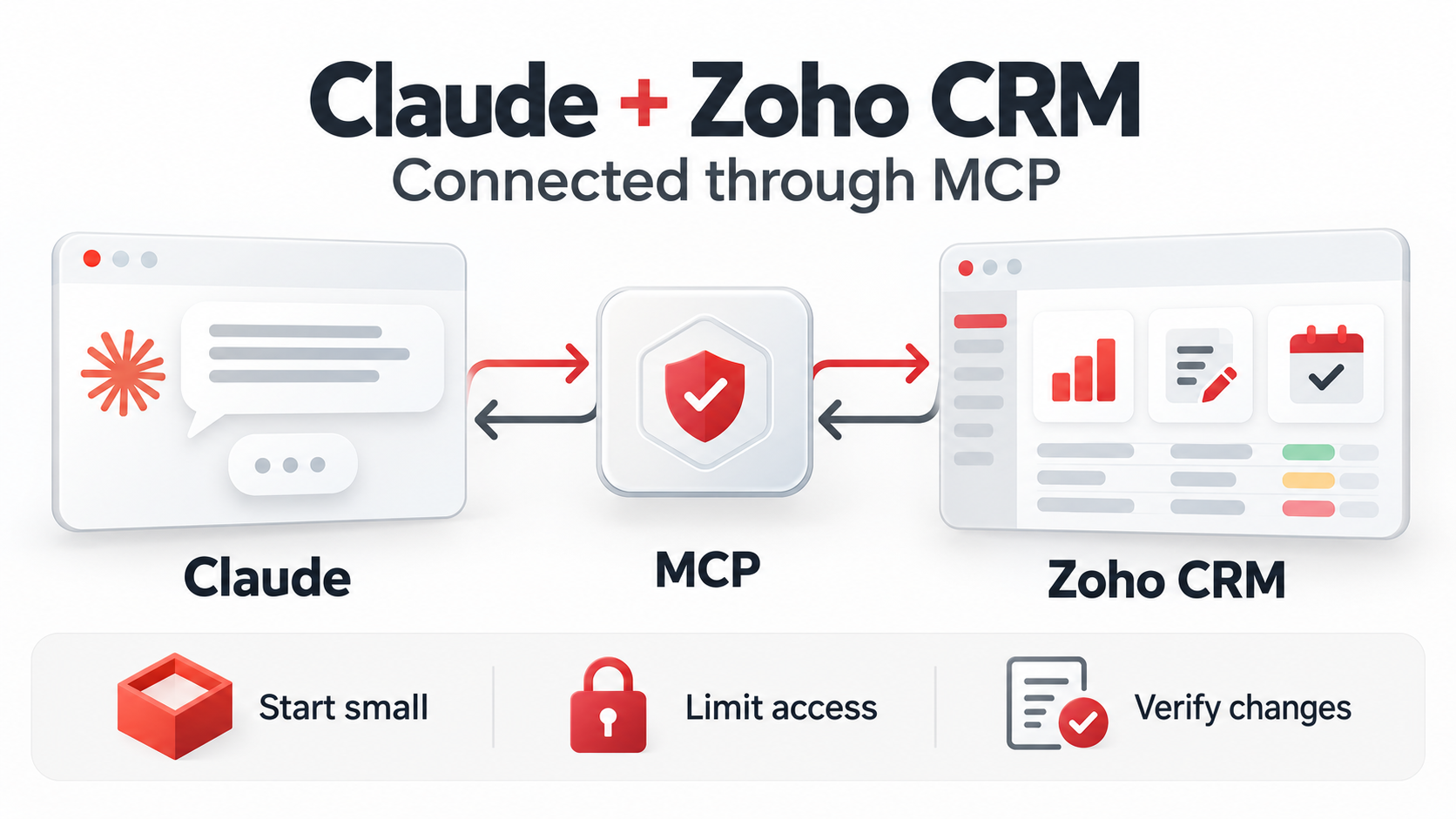
Zoho's MCP (Model Context Protocol) server lets AI assistants such as Claude connect directly to Zoho CRM and work with your live data through natural language. Rather than you clicking through views and filters, the AI can read your pipeline, summarise deal status, flag stale records, bulk-update fields, create tasks, and even help define custom fields in a module. In 2026 this has moved from a novelty demo to something closer to a practical administration assistant — but only if it is set up with the right scope and guardrails.
The challenge for most Zoho One customers is not the connection itself but knowing what the AI can reliably do once it is connected, and what it should never be allowed to do unsupervised. This article sets out a sensible way to find out on your own instance: build a small, contained demonstration, measure where the results are useful versus unreliable, and document the permissions, guardrails and fallback procedures before anyone relies on it in production.
Why?
Two reasons matter here. First, the potential time savings are real for tasks that are tedious in the UI but simple to describe in words: "summarise every open deal over £10,000 that hasn't been touched in 30 days" or "create a follow-up task for each deal in the negotiation stage". Those are natural-language requests that map neatly onto CRM operations, and an AI assistant with MCP access can carry them out without a report builder or a workflow rule being configured first.
Second, the risks are equally real. An AI that can bulk-update records can bulk-break them. A mis-worded prompt applied across hundreds of contacts is not easily undone unless you have planned for it. Data protection obligations, user permissions and audit trails all apply to AI-driven changes just as they do to human ones. That is why the recommended approach is to prove value on a sandbox or a deliberately small data set first, and to define the guardrails before expanding access — not after the first mistake.
How?
1. Set up a contained test environment
Use a sandbox or a trial organisation with a small set of representative records — a few dozen deals, contacts and tasks across your real pipeline stages. If you must work in production, restrict the test user to a role with limited data visibility so the blast radius of any error stays small.
2. Connect Claude to the MCP server
Establish the connection between your AI client and Zoho's MCP server, authenticating with a dedicated Zoho user rather than an administrator's personal account. This makes permissions explicit and keeps an audit trail attributable. Verify the connection by asking the AI to describe something read-only and harmless, such as listing the modules it can see or counting the records in one module.
3. Run a structured demonstration script
Work through a fixed set of prompts so you can compare results systematically:
- Read and summarise: ask for a pipeline summary — count, value and stage distribution of open deals. Check the figures against a standard CRM view.
- Find and fix data quality issues: ask it to identify records with missing or malformed fields (blank email addresses, inconsistent phone formats). Confirm the list before changing anything.
- Bulk update: apply a single-field update to a handful of records, then verify the change in the UI and in the record's audit history.
- Create records: have it generate follow-up tasks for a specific stage, then check owners, due dates and associations are populated correctly.
- Schema changes: if appropriate, ask it to add a custom field to a module — but treat this as the highest-risk category and test last.
4. Measure useful versus unreliable
For each prompt, record whether the result was correct, partially correct or wrong, and what the failure mode was: misread filter logic, wrong field mapping, hallucinated record names, or correct data but an unintended action. Read-heavy tasks typically perform well; anything involving deletes, mass updates or schema changes deserves manual review of the AI's plan before it executes.
5. Lock down permissions and guardrails
Where the standard MCP server grants more access than you want, a custom MCP server scoped to specific modules and operations is the recommended route. At minimum, ensure the connecting user has only the CRM permissions you would give a careful human assistant: broad read access where needed, narrow write access, and no delete rights for the initial rollout. Document which modules, fields and record types the AI may touch.
6. Define the non-AI fallback
Document how each demonstrated task is done without AI — the saved view, workflow rule, mass-update or report that achieves the same result. This serves two purposes: it gives your team a recovery path if the AI is unavailable or produces a wrong result, and it gives you a baseline for judging whether the AI genuinely saves time.
Expected result
When done properly, you should be able to show a colleague a short walkthrough: a natural-language pipeline summary that matches your CRM view, a small verified bulk update visible in the audit log, and a permission document stating exactly what the AI could and could not do. That demonstration — modest, measured and reversible — is the evidence you need before deciding whether to extend Zoho MCP access more widely across your organisation.
Source: Zoho MCP in 2026: What Claude Can Actually Do Inside Zoho CRM
Discussion
Comments
Questions, corrections and useful additions are reviewed before appearing here.
Discussion Newest first
No comments yet. Start the discussion.