
What?
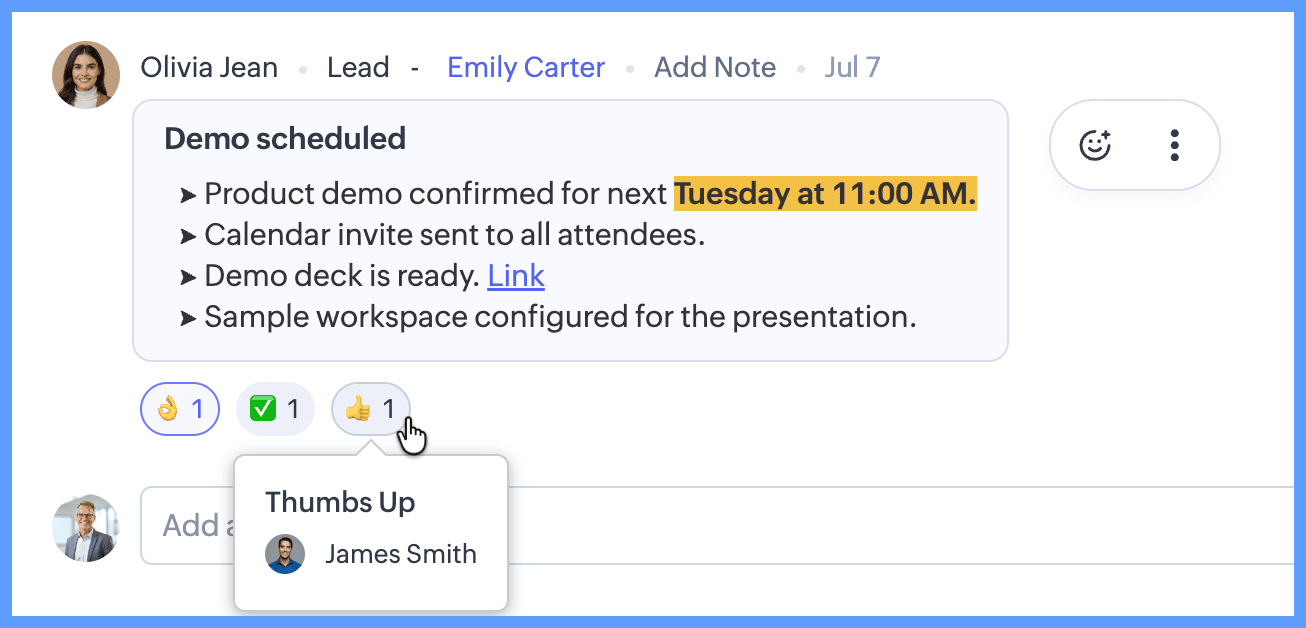
Zoho CRM has announced a refreshed Notes interface and emoji reactions for notes. The practical scenario is a team working on a Lead: one colleague records that a product demonstration has been scheduled, and another acknowledges the update with a reaction rather than adding a second note that says little more than “seen”. The original note remains the place to read the update.
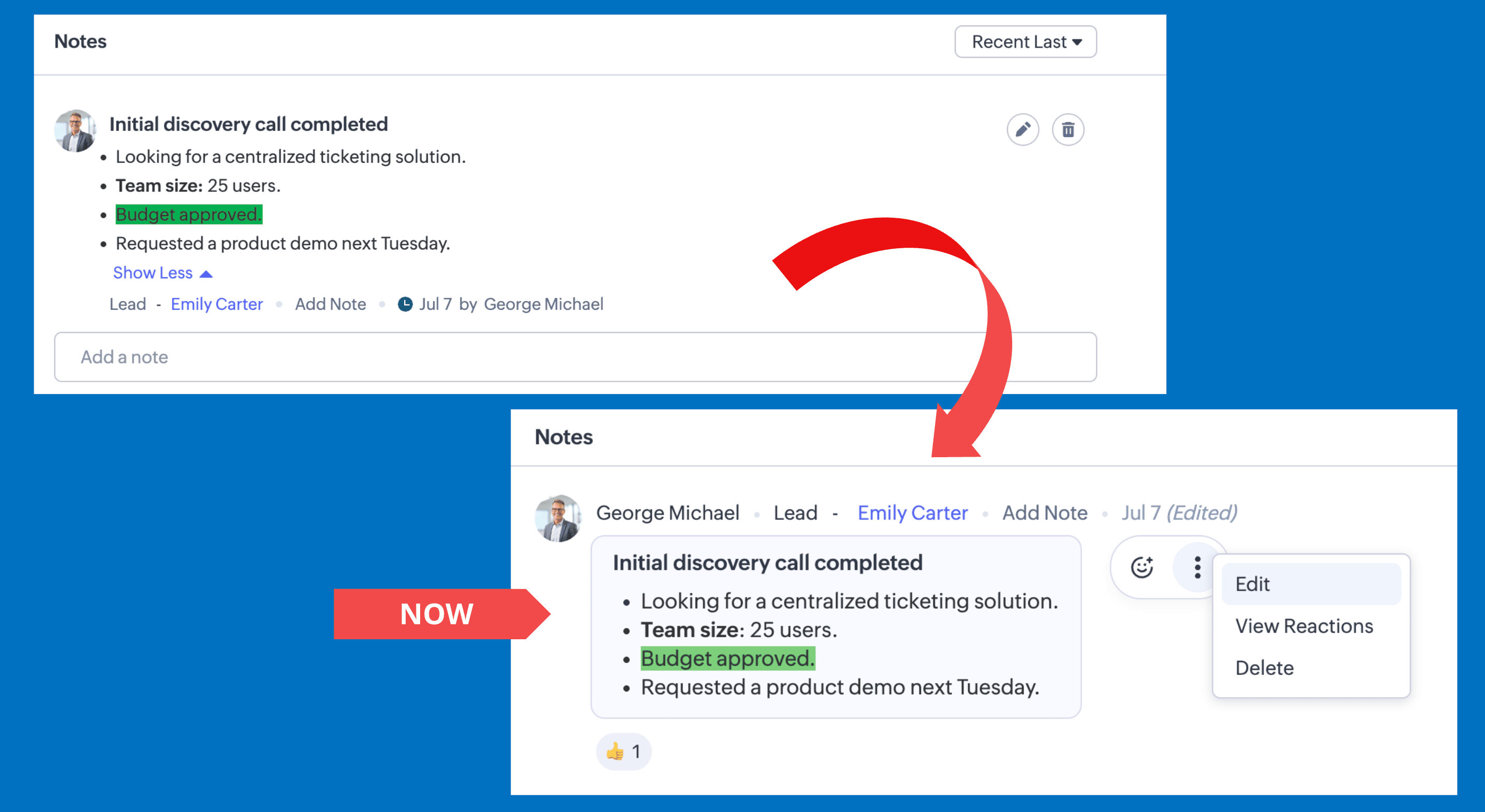
The announcement says note details, author information, timestamps and actions are easier to scan in the new layout. Edit and Delete have moved into the More (⋮) menu. It also says CRM remembers whether you expanded the formatting toolbar while creating a note, and shows that toolbar the next time you create one.
Availability matters before attempting to reproduce this. The moderation update lists Canada (CA), Australia (AU), China (CN), the United Arab Emirates (UAE), Japan (JP) and Saudi Arabia (SA) data centres for all editions. In the EU data centre it lists Free, Standard and Professional editions. The announcement describes support across modules that support Notes, except Feeds; reactions are not yet available in the Zoho CRM mobile app. It does not establish availability in the US data centre or provide an administrator setting to turn reactions on or off.
Why?
Reactions offer a quick acknowledgement without creating another note to sift through. They are not a replacement for an actual update: if a colleague needs a decision, an explanation or a new piece of record history, a written note is still more informative. For a team reviewing Leads, the useful distinction is between “I have seen this” and “Here is what happened next”.
The announced behaviour is specific enough to check. Each user can have one reaction on a given note, which they can change or remove. A user’s own reaction appears first, followed by the most popular reactions. CRM shows only the top three reactions initially; remaining reactions can be viewed separately. Hovering over a reaction shows who used it, while View Reactions in the More (⋮) menu provides a complete list of users and their reactions.
Some community replies raise separate questions about notifications, deactivated users, drag-and-drop attachments and when other data centres will receive the change. These are user reports and requests, not confirmed behaviour or documented fixes. In particular, do not assume that reacting sends a notification or that it affects a note’s edit permissions.
How?
Set up a small demo
- Check the demo account’s data centre and edition against the announced availability. Use the CRM browser interface, not the mobile app, and choose a module in which Notes are available. A Lead is a straightforward example.
- Use a non-sensitive demo Lead and two permitted users. Have the first user create a note about a concrete event, such as a scheduled demonstration. Record who wrote it and the time shown so that both users can identify the same note.
- Open that note as the second user and look for the reaction control. Add a reaction, then check whether it appears on that note. Change it to another reaction and remove it, checking that only one reaction from that user is present at a time.
- With the appropriate users available, add different reactions to the same note. Check the display order, whether only three reaction types appear initially, the names shown on hover and the complete list under More (⋮) > View Reactions. If you cannot arrange enough distinct reactions, leave the three-reaction display rule as an announced behaviour rather than claiming to have verified it locally.
Check the refreshed note layout
On the same Lead, compare the visible author, timestamp and note actions with the announcement. Open More (⋮) to locate Edit and Delete, but avoid deleting the shared demo note unless that is part of your planned test. When creating another note, expand the formatting toolbar and then start a further note to see whether the preference persists for that user.
There is no configuration path for enabling reactions in the supplied announcement. If the control is missing, first confirm the account’s data centre, edition, browser context and whether the chosen module supports Notes. Record those details and what appears on screen; do not present a missing control as a permissions problem or suggest an undocumented switch. Likewise, test any reported attachment or cursor behaviour separately from reactions rather than treating a community comment as a generally reproducible defect.
A successful local check is modest: eligible browser users can acknowledge the same Lead note, change or remove their own reaction, identify other reactors through the announced controls and still find the note’s existing actions. Anything the demo cannot establish—including notifications, deactivated-user behaviour and rollout outside the listed regions—remains an open question for Zoho or for a separate, controlled test.
Discussion
Comments
Questions, corrections and useful additions are reviewed before appearing here.
Discussion Newest first
No comments yet. Start the discussion.