
A friend asked me if there was a quick way to simply right-click on a folder in Windows Explorer and it would generate a text file with the contents of the directory he right-clicked.
What?
We can do this by adding an entry to the context menu (when you right-click on an object). The following is a method of adding this as a single command similar to how we add the "Command prompt from here" option (now built-in to Windows 7). I added this option for him in Windows 7 Ultimate using the system registry (see "How: for Windows 7" below).
-- yield

a_subfolder_in_this_folder
a_file_in_this_folder.txt
another_file_in_this_folder.doc
How?
For Windows XP:
- Open an instance of Windows Explorer and click on "Tools"
- Select "Folder Options..."
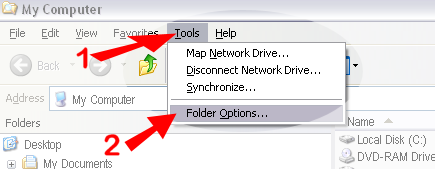
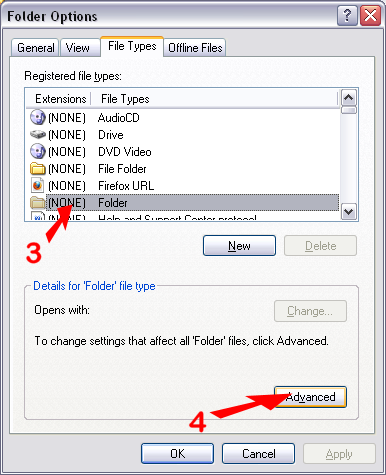
- Select the "(NONE) Folder" option
- Click on "Advanced"
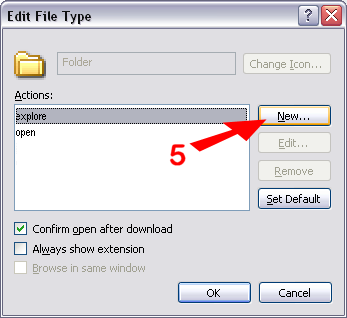
- Click on "New..."
- Enter the New Action as per the following:
- Action: - Give the action name a memorable name (eg. "Print Directory Contents To File")
- Application: - Type the following c:\windows\system32\cmd.exe /c "dir %L /b > %L\directory_printout.txt"
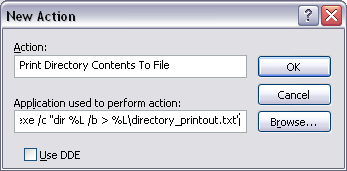
- OK and close all open window dialogs
- TEST: Open an instance of Windows Explorer, Right-click on a folder and select the action you named in step 6.
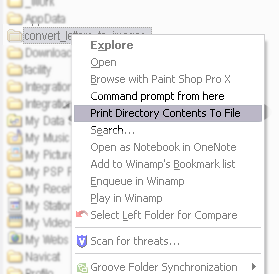
- Open the system registry (Start > Run... > Type "REGEDIT" > OK)
- Navigate to My Computer\HKEY_CLASSES_ROOT\Folder\shell
- Create a new key with the action name (eg. "Print Directory Contents To File" - replace spaces with underscores if you are unsure this will work)
- Add a key to this one called "command"
- Under the "command" key, there should be a new string value called "(Default)". If there isn't create a New "String Value", name it "(Default)"
- Double-click this string value and type the following c:\windows\system32\cmd.exe /c "dir %L /b > %L\directory_printout.txt" (including the double-quotes)
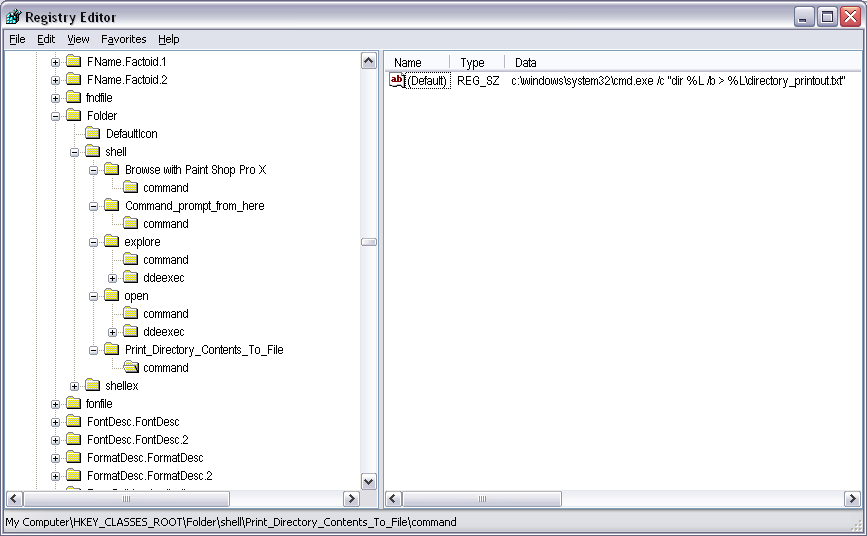
- TEST: Open an instance of Windows Explorer, Right-click on a folder and select the action.
Additional Notes:
- This outputs the contents to a text file called "directory_printout.txt". This file will be stored in the folder that you asked to list.
- Instead of C:\windows\system32\cmd.exe, I could have used %Comspec% or even %windir%\system32\cmd.exe but with some group policies, you will get an "access denied" message. If you don't have a C:\windows folder, then find your "cmd.exe" program and change the path in the above instructions accordingly.
Discussion
Comments
Questions, corrections and useful additions are reviewed before appearing here.
Discussion Newest first
No comments yet. Start the discussion.