For Zoho services only


I'm currently part of a wider delivery team at Ascent Business Solutions, recognised as a leading Zoho Premium Solutions Partner in the United Kingdom.

Ascent Business Solutions support organisations with everything from targeted technical fixes through to full Zoho CRM implementations and long-term platform adoption. Working as a team rather than a one-person consultancy allows projects to move forward consistently, with access to the right skills at each stage.

The team I manage specialises in API integrations between Zoho and third-party finance and commerce platforms such as Xero, Shopify, WooCommerce, and eBay. Much of our work involves solving integration challenges that fall outside standard documentation, supporting new ideas, new sectors, and evolving business models.

Success is measured through practical outcomes and return on investment, ranging from scaling small operations into high-turnover businesses to delivering rapid gains through online payments, automation, and streamlined digital workflows.

If you are looking for structured Zoho expertise backed by an established consultancy, you can contact Ascent Business Solutions on 0121 392 8140 (UK), email info@ascentbusiness.co.uk, or visit https://www.ascentbusiness.co.uk.
Zoho Analytics: Setup DataSource via FTP Connection

Zoho Analytics: Setup DataSource via FTP Connection

What?
So this is going to be an article with a bunch of pictures showing step-by-step of how I setup a recurring data source in Zoho Analytics via FTP.

Why?
The use-case here is that I have a client who wants to import data via FTP (SFTP - to be precise) and have this available to their Zoho apps. My aim(s) are:

  1. Setup recurring FTP connection.
  2. Make data readily available to ZohoCRM.

How?
Well, let's setup the FTP connection first in Zoho Analytics:
  1. Login to Zoho Analytics
  2. Click on "Data Sources" in the left sidebar then click on "Add Data Sources" in the top right:
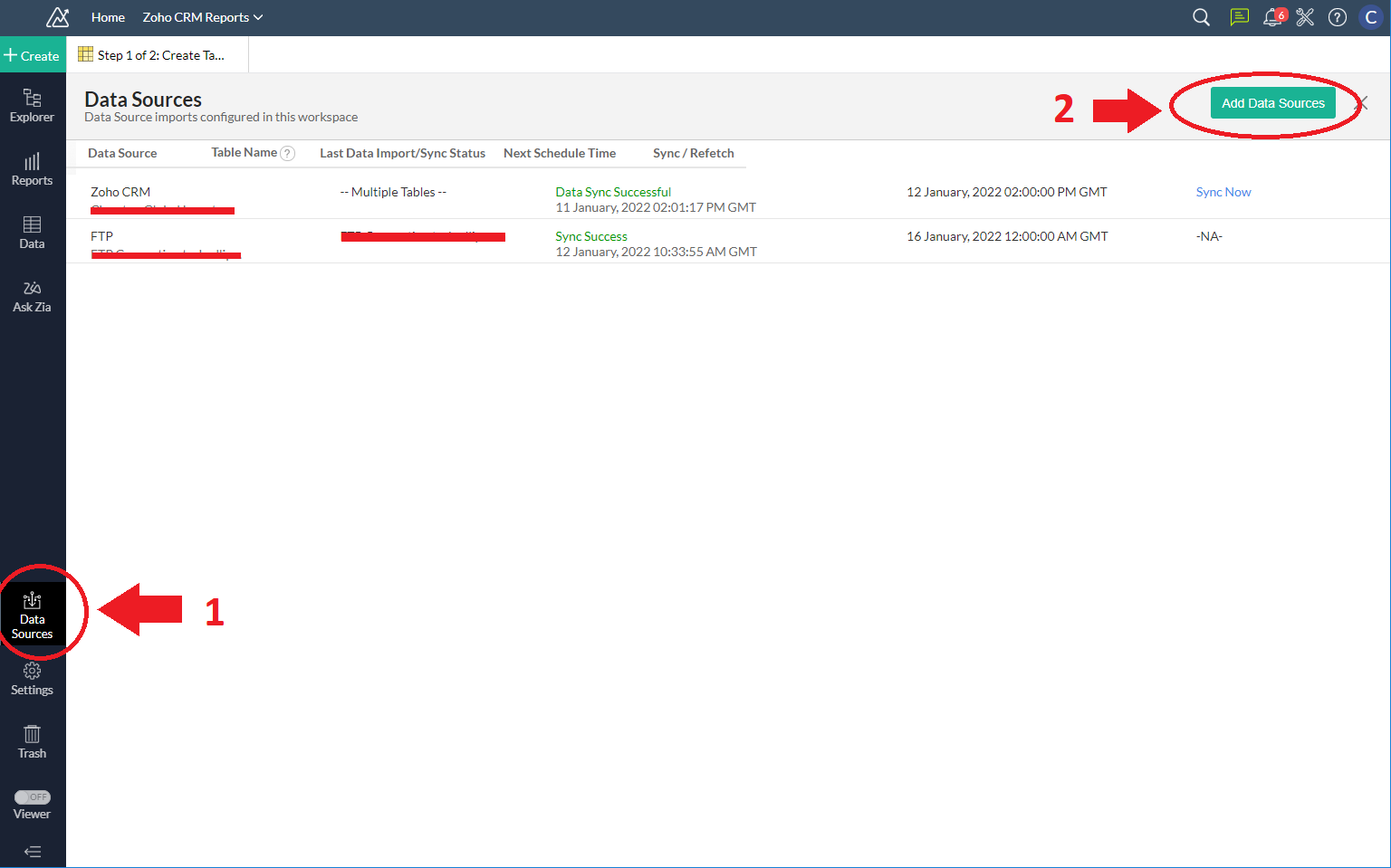
    Zoho Analytics: Setup DataSource via FTP Connection: Select Data Sources and click on Add Data Source
  3. Type FTP in the filter field in the top right and there should be a single FTP option displayed to you:
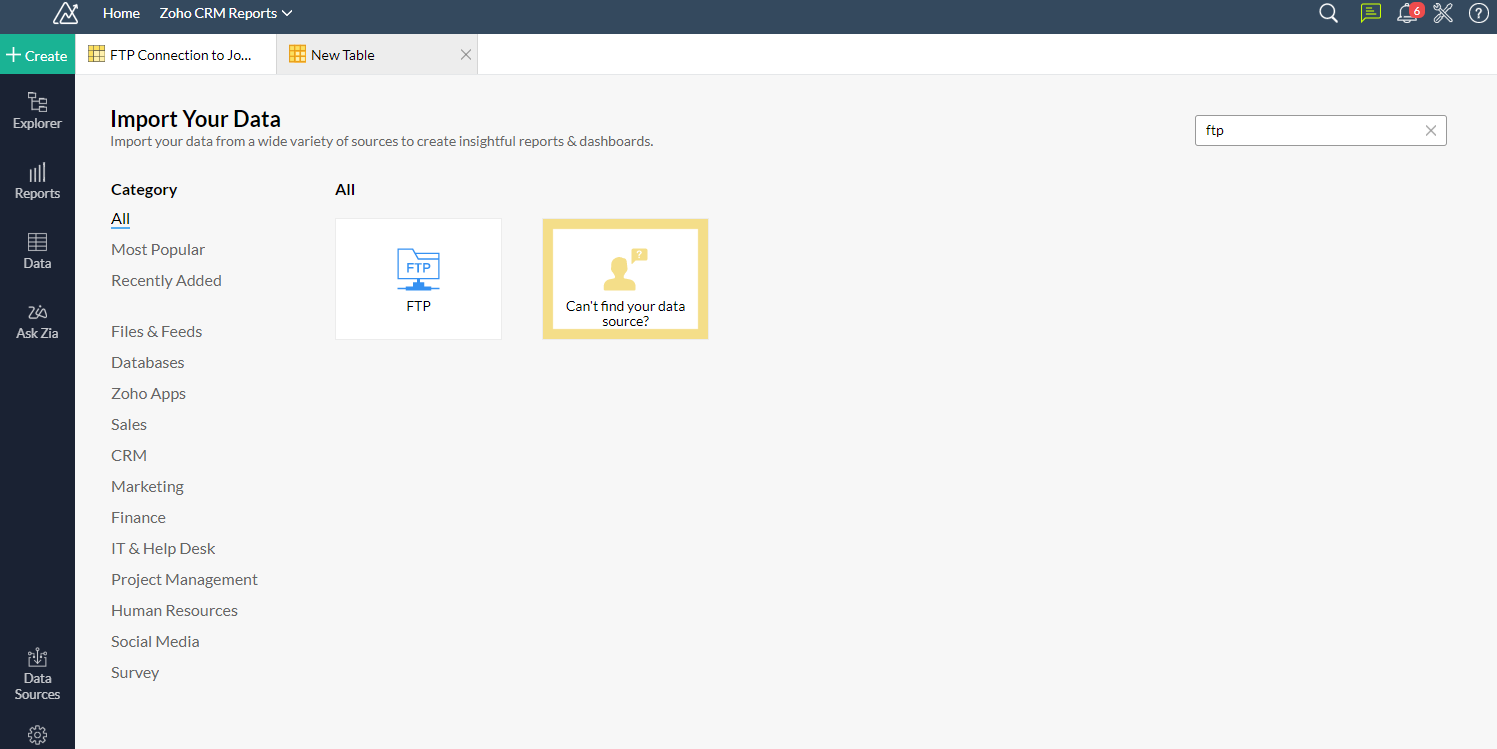
    Zoho Analytics: Setup DataSource via FTP Connection: Type FTP in the filter and select the FTP option
  4. Step 1 of 2: Give the datasource the table name it will have in Zoho Analytics, a description and then enter in the FTP details as per your configuration, then click on "Next":
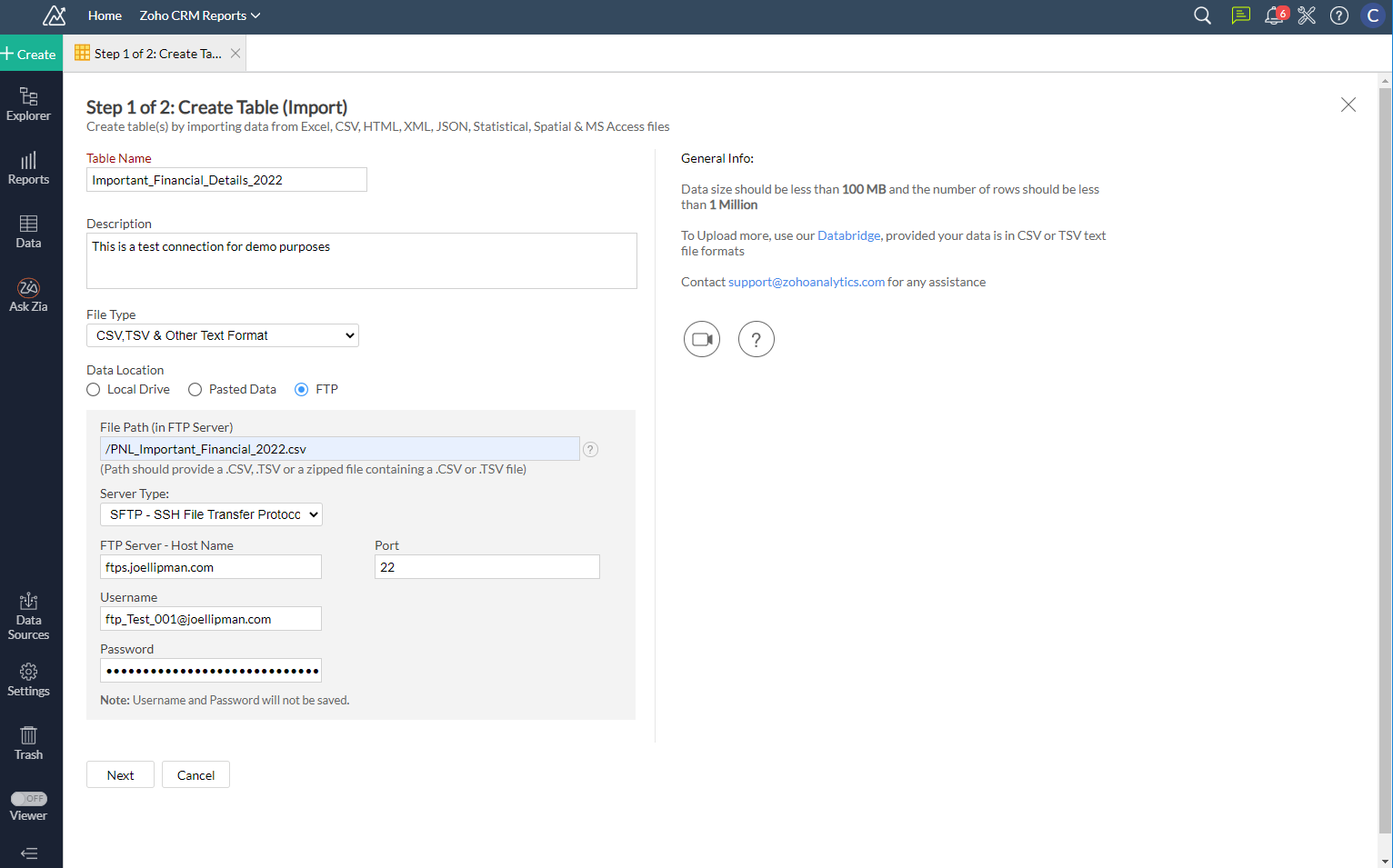
    Zoho Analytics: Setup DataSource via FTP Connection: Select Data Sources and click on Add Data Source
  5. Step 2 of 2: specify whether first row are headers/column/field names. If necessary, specify the format of the data per column (in this example, I highlight the Date column, it then prompted me what format this is in, eg. dd/MM/yyyy):
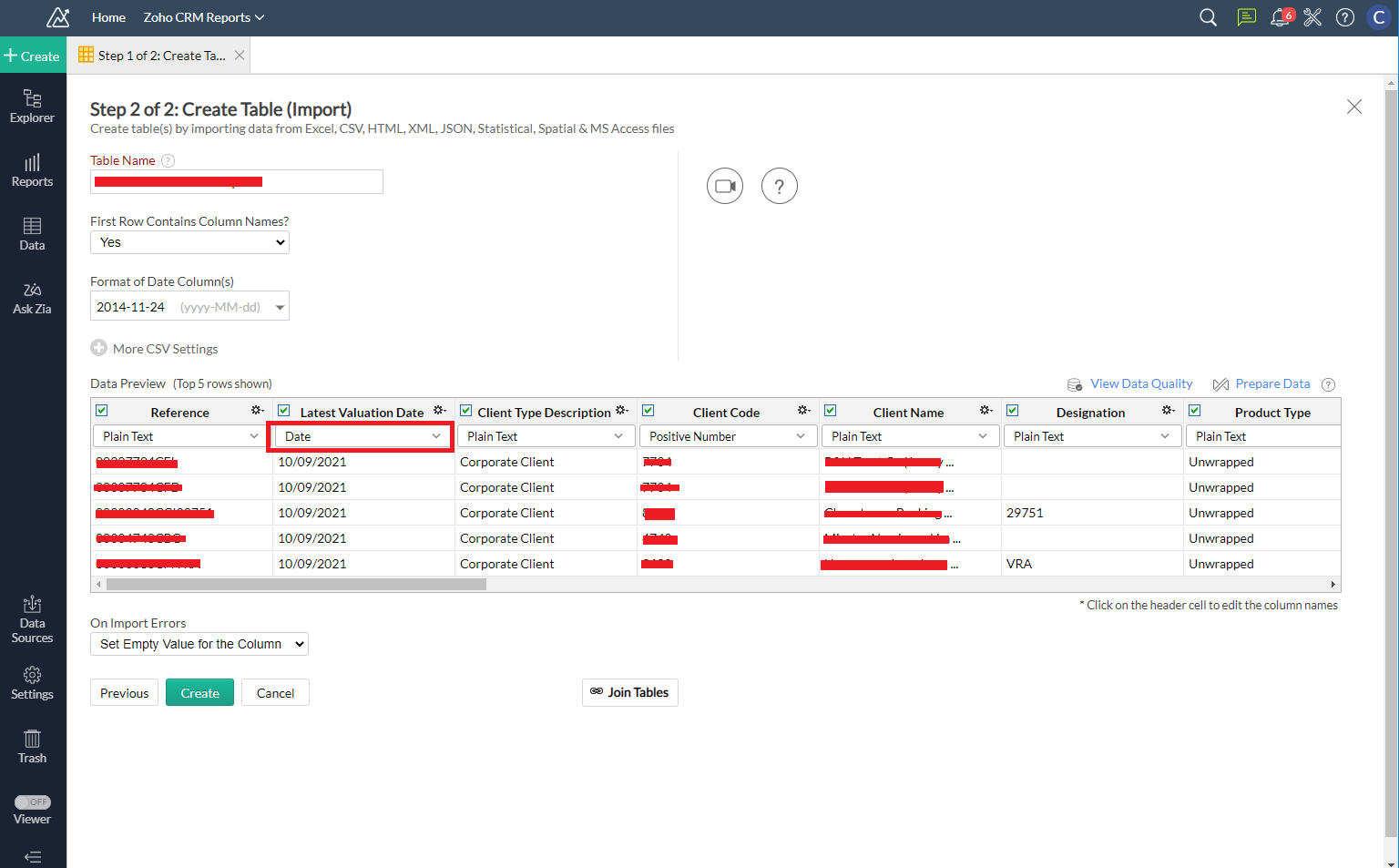
    Zoho Analytics: Setup DataSource via FTP Connection: Specify Data Format for Import
  6. You will then be shown a summary of your import:
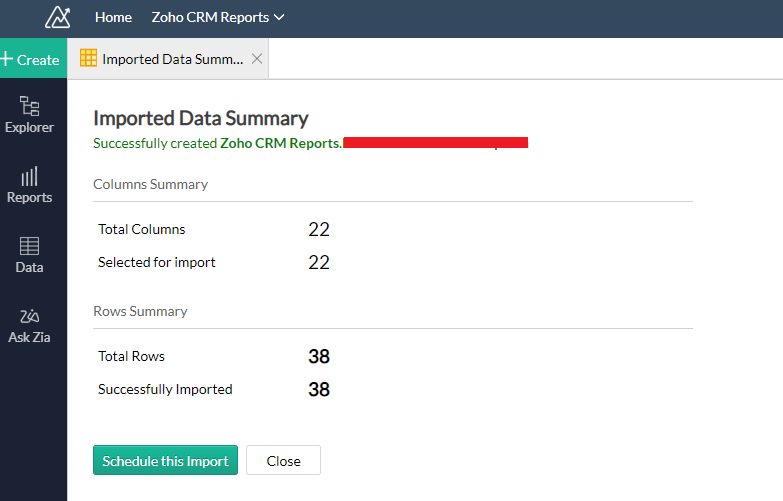
    Zoho Analytics: Setup DataSource via FTP Connection: Imported Data Summary
  7. You can then setup a schedule for the import to automatically download the data file regularly:
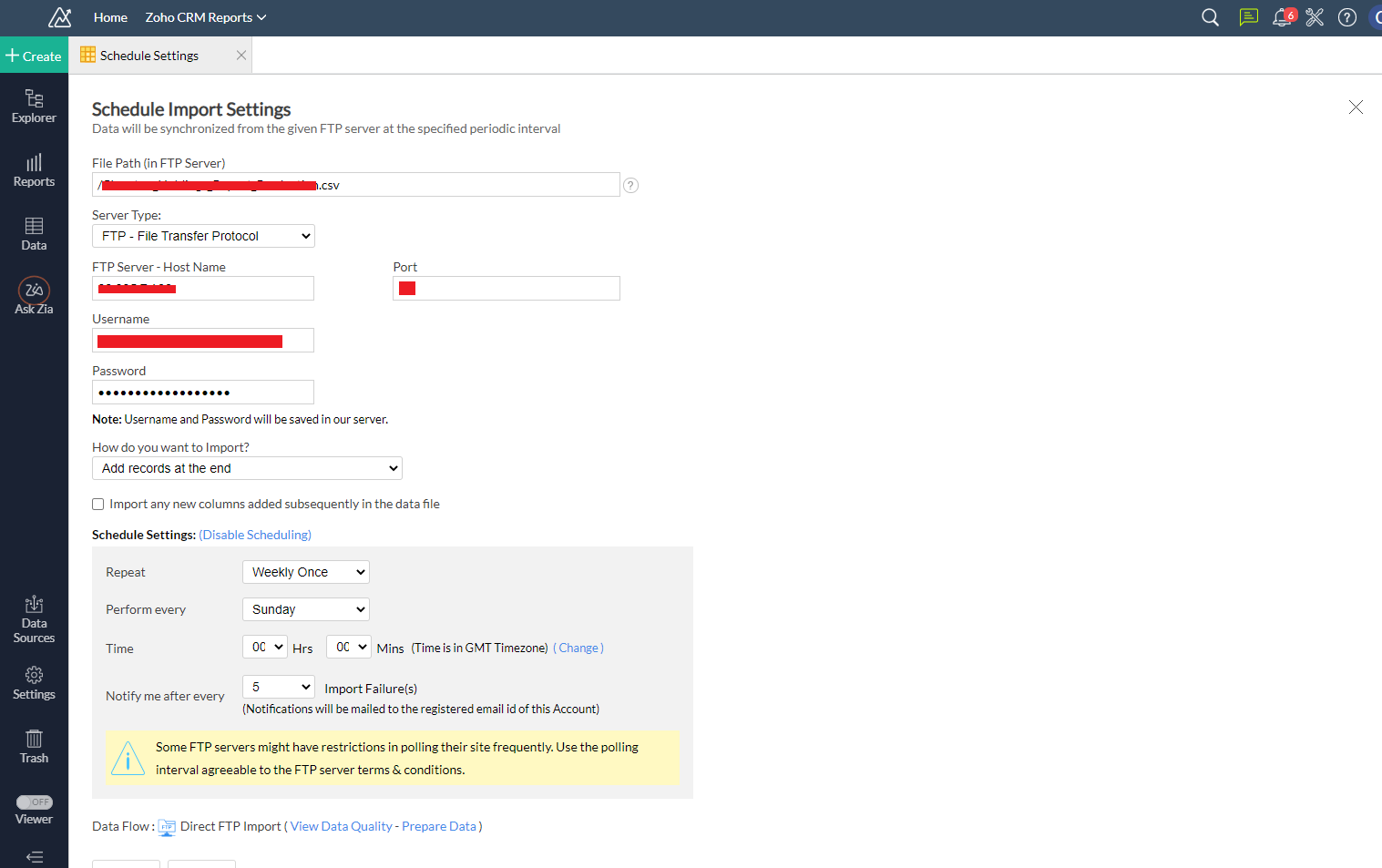
    Zoho Analytics: Setup DataSource via FTP Connection: Setting up a Schedule to regularly download the file
  8. After all that you will be shown your data table:
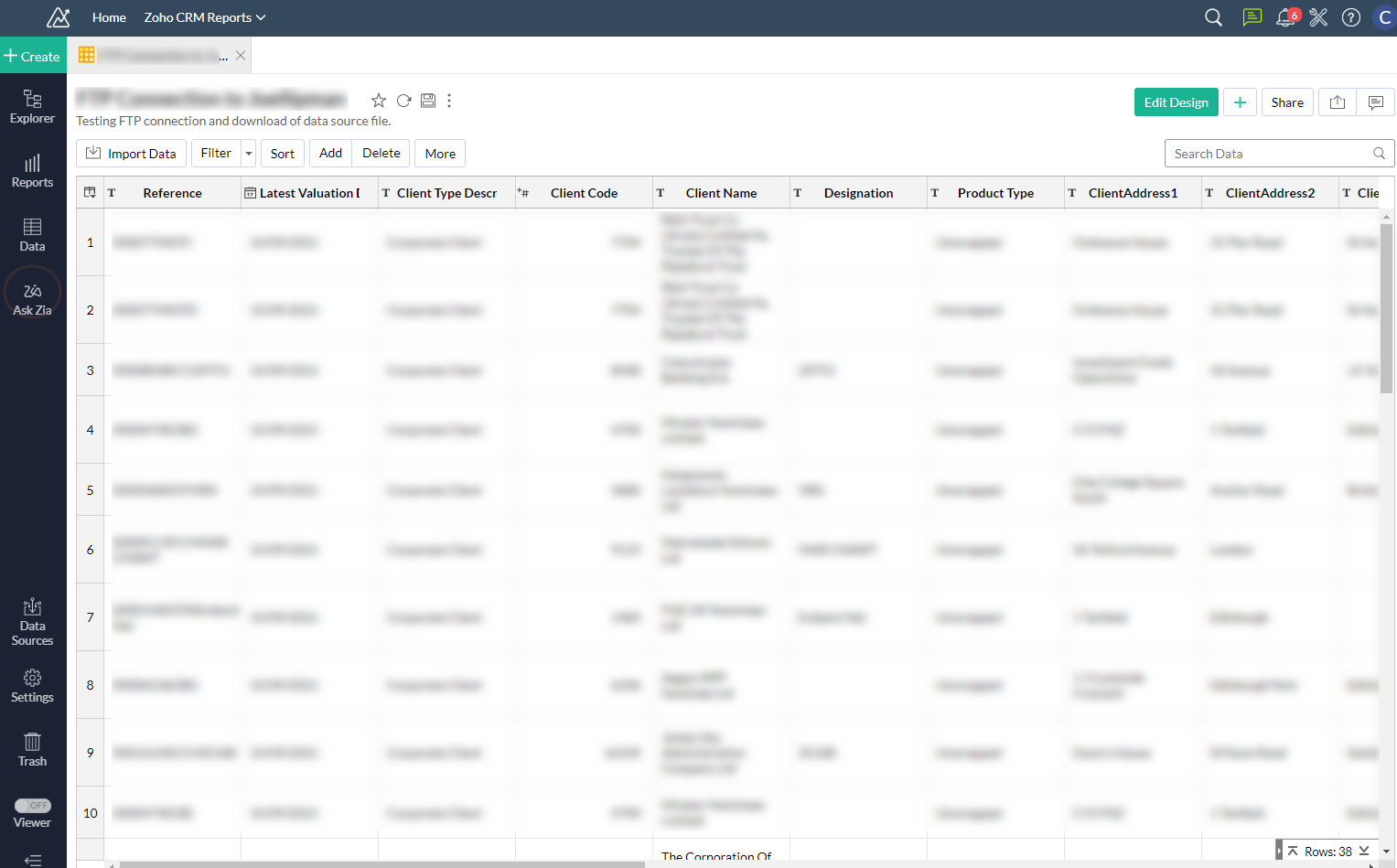
    Zoho Analytics: Setup DataSource via FTP Connection: Select Data Sources and click on Add Data Source


Additional Note(s):
Here are some notes & settings you may need on your quest to setup Zoho Analytics FTP Data Sources:
  • Zoho Analytics IP Addresses to whitelist (if necessary):
    copyraw
    // EU Data Centers
    31.186.226.0 - 31.186.226.255
    185.20.209.0 - 185.20.209.255
    87.252.213.0 - 87.252.213.255
    84.207.209.0 - 84.207.209.255
    185.20.211.0 - 185.20.211.255
    31.186.243.0 - 31.186.243.255
    89.36.170.0 - 89.36.170.255
    217.163.72.0 - 217.163.72.255
    213.244.146.0 - 213.244.146.255
    185.230.214.0 - 185.230.215.255
    
    // US Data Centers
    136.143.178.0 - 136.143.179.255
    136.143.176.0 - 136.143.177.255
    136.143.190.0 - 136.143.190.255
    1.  // EU Data Centers 
    2.  31.186.226.0 - 31.186.226.255 
    3.  185.20.209.0 - 185.20.209.255 
    4.  87.252.213.0 - 87.252.213.255 
    5.  84.207.209.0 - 84.207.209.255 
    6.  185.20.211.0 - 185.20.211.255 
    7.  31.186.243.0 - 31.186.243.255 
    8.  89.36.170.0 - 89.36.170.255 
    9.  217.163.72.0 - 217.163.72.255 
    10.  213.244.146.0 - 213.244.146.255 
    11.  185.230.214.0 - 185.230.215.255 
    12.   
    13.  // US Data Centers 
    14.  136.143.178.0 - 136.143.179.255 
    15.  136.143.176.0 - 136.143.177.255 
    16.  136.143.190.0 - 136.143.190.255 
  • The file on the FTP server to download can be of type: CSV, TSV, Text, Excel, MS Access DB, HTML, JSON, XML and others:
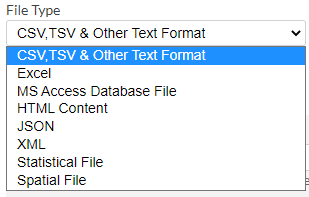
    Zoho Analytics: Setup DataSource via FTP Connection: File Types
  • Supports server types of FTP, FTPS - File Transfer over Explicit TLS/SSL, FTPS - File Transfer Over Implicit TLS/SSL, and SFTP - SSH File Transfer Protocol on a Port number of your choosing:
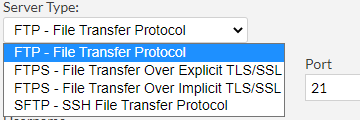
    Zoho Analytics: Setup DataSource via FTP Connection: Server Types
  • Set for new imports to append, replace, or check if exists then insert/replace:
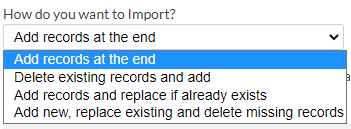
    Zoho Analytics: Setup DataSource via FTP Connection: Append, Replace, Insert New
  • Schedule to repeat: Every X Hours, Every Day, Weekly, Monthly:
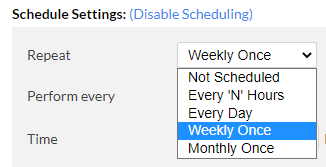
    Zoho Analytics: Setup DataSource via FTP Connection: Repeat
  • Schedule with Timezone specified (click on the "(Change)" link next to timezone:
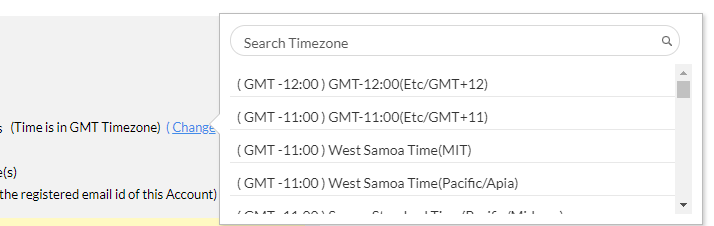
    Zoho Analytics: Setup DataSource via FTP Connection: Change TimeZone

Error(s)
  • Unable to import file from the FTP server:
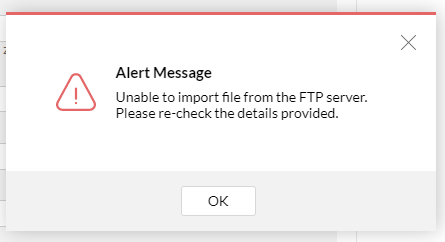
    Zoho Analytics: Setup DataSource via FTP Connection: Error Importing File
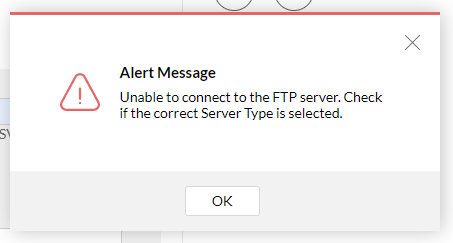
  • Unable to connect to the FTP server:
    Zoho Analytics: Setup DataSource via FTP Connection: Error Connecting to Server
Category: Zoho Analytics :: Article: 330

Credit where Credit is Due:


Feel free to copy, redistribute and share this information. All that we ask is that you attribute credit and possibly even a link back to this website as it really helps in our search engine rankings.

Disclaimer: Please note that the information provided on this website is intended for informational purposes only and does not represent a warranty. The opinions expressed are those of the author only. We recommend testing any solutions in a development environment before implementing them in production. The articles are based on our good faith efforts and were current at the time of writing, reflecting our practical experience in a commercial setting.

Thank you for visiting and, as always, we hope this website was of some use to you!

Kind Regards,

Joel Lipman
www.joellipman.com